Unlocking the full potential of your gaming setup often means going beyond solo play. Discover how to connect two computers for gaming whether you are aiming for a lag free LAN party experience or need a dedicated streaming PC. This comprehensive guide provides step by step instructions for direct connections network setups and optimizing your dual PC gaming environment. Learn about essential hardware software configurations and troubleshooting tips to ensure seamless gameplay and maximum performance. Perfect for gamers balancing life and passion this resource helps you conquer setup challenges enhance social gaming and make smart hardware decisions without breaking the bank. Dive into practical advice to elevate your cooperative and competitive gaming adventures today. This navigational guide covers everything from hardware essentials to crucial software settings ensuring a smooth reliable connection for all your gaming needs.
How do I set up a direct Ethernet connection between two gaming PCs?
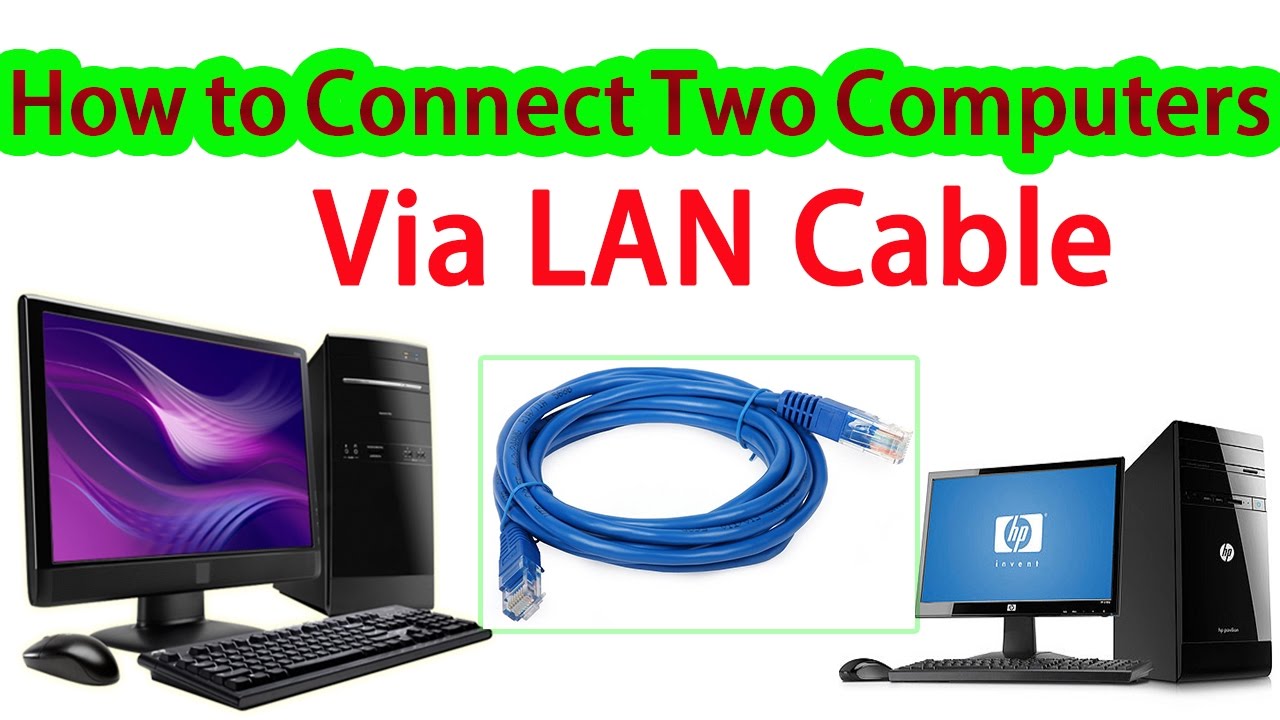
To directly connect two gaming PCs using an Ethernet cable, you will need a Cat5e or Cat6 cable. Assign static IP addresses to both computers within the same subnet (e.g., PC1: 192.168.1.1, PC2: 192.168.1.2) with a subnet mask of 255.255.255.0. Disable or configure your firewalls to allow communication between them. This method creates a dedicated, low latency link perfect for LAN gaming or file transfers without needing a router.
What are the benefits of connecting two computers for gaming, especially for streamers?
Connecting two computers for gaming offers significant advantages, particularly for streamers. By dedicating one PC to gaming and the other to streaming tasks like encoding and broadcasting, you offload the processing burden from your primary gaming rig. This results in smoother gameplay with higher frame rates on the gaming PC, and a more stable, higher quality stream for your audience. For non streamers, it is great for local co op or separating game resources from background applications.
Can I connect two PCs for gaming using Wi-Fi instead of an Ethernet cable?
While technically possible to connect two PCs for gaming via Wi-Fi, it is generally not recommended for optimal performance. Wi-Fi introduces higher latency and can be prone to interference and signal drops, leading to a less stable and potentially laggy gaming experience compared to a wired Ethernet connection. For competitive or serious gaming, a direct Ethernet cable or a connection through a Gigabit router is always superior for speed and reliability.
Do I need a special 'crossover' Ethernet cable, or will a standard one work?
For modern computers (most built after 2005), you can typically use a standard Ethernet cable (straight through Cat5e or Cat6) to connect two PCs directly. This is thanks to Auto MDIX technology, which automatically detects and configures the connection. Older PCs might still require a crossover cable, but it is becoming increasingly rare. If you are connecting via a router or switch, always use standard straight through cables.
What network settings should I check when connecting two computers for gaming?
When connecting two computers for gaming, several network settings are crucial. Ensure both PCs are set to a Private network profile in Windows for better network discovery and sharing. Verify that Network Discovery is turned on. Crucially, adjust your Windows Firewall settings (or any third party firewall) to allow communication between the two machines, especially for the specific game executables you will be playing or streaming software you will be using. Correct IP address configuration is also vital for direct connections.
How does a dual PC setup benefit local multiplayer gaming or LAN parties?
A dual PC setup significantly enhances local multiplayer gaming and LAN parties by providing dedicated hardware for each player. Instead of screen splitting or relying on one machine to run multiple instances, each player has their own monitor, keyboard, and mouse, ensuring a full screen, high performance experience. This eliminates resource contention, reduces lag, and allows for more complex games to be played simultaneously, fostering a better social gaming environment where friends can play side by side.
Are there specific software or drivers needed to connect two gaming PCs successfully?
Generally, no special software is needed beyond your operating system's built in networking tools. Ensuring your Network Interface Card NIC drivers are up to date is crucial for optimal performance and compatibility. For specific use cases like streaming, software like OBS Studio or Streamlabs OBS will be installed on your dedicated streaming PC. For file sharing, Windows' built in sharing features or third party tools can be used. The core connection relies on hardware and basic OS network configuration.
In the vibrant world of gaming, where 87% of US gamers regularly dive into their favorite titles, often spending 10 or more hours a week, optimizing your setup is key to unlocking maximum enjoyment and performance. For many, gaming is a cherished escape and a way to connect with friends, but balancing this passion with work, family, and other life commitments can present challenges. We have all been there facing performance bottlenecks when streaming, struggling with choppy local multiplayer experiences, or simply wondering if there is a better way to get that smooth, immersive gameplay we crave. This is where understanding how to connect two computers for gaming becomes a game changer.
You might be a busy professional looking to stream your evening gaming sessions without dropping frames, a parent planning an epic LAN party for the kids and their friends or simply someone who wants to dedicate one machine purely to resource intensive games while another handles Discord voice chat and web browsing. Whatever your motivation the idea of linking two PCs can sound daunting. Fear not fellow gamer this guide is designed to demystify the process. We will walk you through everything you need to know about how to connect two computers for gaming offering practical, no nonsense advice to help you achieve a robust efficient and ultimately more enjoyable gaming setup. Get ready to level up your understanding and transform your gaming experience without the hype or the hassle.
Why Consider Connecting Two Computers for Gaming?
Connecting two computers for gaming might seem like overkill to some but for many it is a strategic move that addresses common pain points and significantly enhances their gaming experience. The average US gamer, around 36 years old, often juggles work and family, making efficient and optimized playtime crucial. Imagine playing your favorite competitive shooter with buttery smooth frame rates while simultaneously streaming your gameplay in crystal clear quality to your audience without a single stutter. That is the power of a dual PC setup. It is about maximizing performance building skills socially engaging and making the most of your limited gaming hours.
For content creators and streamers, a dedicated streaming PC offloads the demanding encoding tasks from the primary gaming rig. This means your gaming PC can focus 100% of its resources on running the game at its highest settings, leading to better in game performance and a more stable, higher quality stream for your viewers. Beyond streaming, a dual PC setup is invaluable for local area network or LAN parties. Instead of huddling around one screen or experiencing lag from a single machine trying to host a demanding game, each player gets their own dedicated screen and input, fostering a truly immersive and social co op or competitive experience.
What Are the Main Ways to Connect Two Gaming PCs?
When you are looking to learn how to connect two computers for gaming there are primarily two effective methods to consider each with its own advantages depending on your specific needs. Understanding these foundational approaches is crucial for building a stable and efficient gaming environment. These methods cater to different scenarios from simple direct connections to more complex network setups that can integrate multiple devices and internet access.
The first method involves a **Direct Ethernet Connection**. This is the simplest and often the most reliable way to link two PCs directly without any intermediate hardware like a router or switch. It is perfect for one on one LAN gaming or direct file transfers where latency is a critical factor. The second common approach is connecting your PCs **Via a Network Router or Switch**. This method is more versatile allowing both computers to access the internet communicate with other devices on your home network and often manage traffic more efficiently. Both options provide a solid foundation for your dual PC gaming setup but choosing the right one depends on your specific goals and existing network infrastructure.
How Do I Directly Connect Two PCs for Gaming Using an Ethernet Cable?
A direct Ethernet connection is a fantastic option for minimal latency and simplicity especially for dedicated LAN gaming between just two machines. This is often the preferred method for competitive local play or for quickly establishing a high speed link. Here is a step by step guide on how to connect two computers for gaming directly:
- Acquire the Right Cable: For modern computers built in the last 15 years or so, a standard Cat5e or Cat6 Ethernet cable will usually suffice. Most modern Network Interface Cards NICs feature Auto MDIX technology, which automatically detects the cable type. If you have older PCs, a crossover Ethernet cable might be necessary, but it is less common now.
- Connect the PCs: Plug one end of the Ethernet cable into an available Ethernet port on the first gaming PC and the other end into an available Ethernet port on the second gaming PC.
- Configure IP Addresses: This is the most crucial step. Both computers need static IP addresses within the same subnet but different from each other.
- On PC 1: Go to Control Panel > Network and Sharing Center > Change adapter settings. Right click on your Ethernet adapter, select Properties, then select Internet Protocol Version 4 TCP/IPv4 and click Properties. Choose Use the following IP address and enter: IP address: 192.168.1.1, Subnet mask: 255.255.255.0. Leave Default gateway and DNS blank.
- On PC 2: Follow the same steps, but enter: IP address: 192.168.1.2, Subnet mask: 255.255.255.0.
- Adjust Firewall Settings: Your Windows Firewall or any third party antivirus/firewall software might block communication. Ensure you create exceptions for the game executables you plan to play or temporarily disable the firewall for testing purposes (but remember to re enable it afterwards).
- Enable Network Discovery: On both PCs, go to Network and Sharing Center > Change advanced sharing settings. Under Private network, ensure Turn on network discovery and Turn on file and printer sharing are selected.
After these steps, your two PCs should be directly connected and able to communicate. You can test the connection by trying to ping one PC from the other using the Command Prompt (e.g., ping 192.168.1.1 from PC 2).
What's the Best Network Setup for Connecting Two Gaming PCs via a Router?
Connecting your gaming PCs via a router or a dedicated network switch offers more flexibility and allows both machines to share internet access while still providing excellent local network performance. This is the more common setup for home networks that already have a router. Here is how to achieve the best network setup when learning how to connect two computers for gaming through a router:
- Gigabit Hardware is Essential: Ensure both your router or switch and your computers' Ethernet ports are Gigabit Ethernet capable (1000 Mbps). Anything less will create a bottleneck for high speed data transfer. Many routers purchased in the last few years are Gigabit, but check specifications.
- Use Quality Ethernet Cables: Stick with Cat5e or Cat6 Ethernet cables for all connections between your PCs and the router/switch. These cables are designed to handle Gigabit speeds reliably.
- Connect the PCs to the Router/Switch: Plug one end of a standard Ethernet cable into an available LAN port on your router/switch and the other end into the Ethernet port on each gaming PC.
- Automatic IP Configuration (DHCP): Most routers automatically assign IP addresses using DHCP. This means your PCs should automatically get an IP address from the router. You typically do not need to set static IPs manually in this scenario unless you have a specific reason (e.g., port forwarding to a specific machine).
- Optimize Router Settings (QoS): If your router supports Quality of Service QoS features consider configuring them. QoS allows you to prioritize gaming traffic over other network activities ensuring your games get the bandwidth they need. Look for settings related to 'Game Prioritization' or 'Application Priority'.
- Private Network Profile: Just like with direct connections, ensure your Windows network profile is set to 'Private' on both machines. This ensures optimal network discovery and sharing within your home network.
This setup allows for a robust, multi functional network ideal for both local gaming and seamless online experiences, perfect for the modern gamer who values both social play and solo adventures.
Are There Specific Network Settings I Need to Adjust on Windows for Dual PC Gaming?
Beyond the physical connection, properly configuring your Windows network settings is vital to ensure smooth communication between your two gaming PCs. Neglecting these details can lead to frustrating setup issues and performance hiccups. Here are the key adjustments you should make when learning how to connect two computers for gaming:
- Network Profile: Always ensure your network is set to 'Private' rather than 'Public'. The Public profile is more restrictive, designed for security in unsecured environments, and can prevent necessary communication between your PCs. You can change this in Windows Settings > Network & internet > Ethernet (or Wi-Fi) > click on your connected network and select 'Private network'.
- Network Discovery and File Sharing: For your PCs to 'see' and communicate with each other, Network Discovery needs to be enabled. Go to Control Panel > Network and Sharing Center > Change advanced sharing settings. Under the 'Private' profile, ensure 'Turn on network discovery' and 'Turn on file and printer sharing' are both selected. This is crucial for local gaming and transferring files between machines.
- Windows Firewall: This is a common culprit for connection issues. Your Windows Defender Firewall might be blocking incoming or outgoing connections necessary for your games or streaming software. You have a few options:
- Create Specific Rules: This is the most secure method. Go to Windows Security > Firewall & network protection > Allow an app through firewall. Add the executables for your games and streaming software (e.g., OBS Studio) to the allowed list, making sure both 'Private' and 'Public' boxes are checked if you are unsure, but 'Private' is usually sufficient.
- Temporarily Disable: For troubleshooting, you can temporarily disable the firewall for your private network. However, always re enable it once you have identified the issue to maintain security.
- IP Address Configuration (for Direct Connect): As mentioned earlier, if you are directly connecting two PCs without a router, manually assigning static IP addresses within the same subnet is absolutely essential. For router based connections, DHCP will handle this automatically.
- Driver Updates: Ensure your Network Interface Card NIC drivers are always up to date. Outdated drivers can lead to performance issues or connectivity problems. Check your motherboard manufacturer's website or the NIC manufacturer's site for the latest drivers.
Paying attention to these Windows network settings will prevent many common frustrations and ensure your dual PC gaming setup operates flawlessly.
How Can I Optimize My Network for Low Latency LAN Gaming?
Low latency is the holy grail for any serious gamer, especially when it comes to local multiplayer or LAN gaming. When you are learning how to connect two computers for gaming, optimizing your network for minimal delay can be the difference between victory and defeat. Here is how to fine tune your setup for the snappiest, most responsive local gaming experience:
- Go Wired, Always: This is non negotiable. Wireless connections, even the latest Wi-Fi 6E, introduce inherent latency and are susceptible to interference. For gaming, always use a direct Ethernet cable connection.
- Use Gigabit Ethernet: Ensure all your network hardware, including your PCs' NICs, router, and switch, supports Gigabit Ethernet (1000 Mbps). This provides the necessary bandwidth for rapid data transfer, minimizing any potential bottlenecks.
- Dedicated Switch (Optional but Recommended): If you are connecting more than two PCs or want to isolate your gaming traffic from other home network activities, a dedicated Gigabit Ethernet switch is a great investment. Connect all gaming PCs directly to this switch for optimal performance.
- Minimize Background Traffic: Before a LAN session, close any unnecessary applications on both gaming PCs that consume network bandwidth, such as cloud sync services, automatic updates, or background downloads. This ensures your game gets priority.
- Update Network Drivers: As mentioned, always keep your Network Interface Card NIC drivers up to date. Manufacturers often release updates that improve performance and stability.
- Disable Unnecessary Network Protocols: In your Ethernet adapter's properties (TCP/IPv4 settings), you can uncheck any protocols you do not need, such as Link Layer Topology Discovery Mapper I/O Driver or Internet Protocol Version 6 TCP/IPv6 if you are not using IPv6, to reduce overhead. Be cautious with this step and only disable what you are sure is not needed.
- Check Cable Quality: A faulty or low quality Ethernet cable can introduce errors and degrade performance. Use high quality Cat5e or Cat6 cables that are in good condition.
By implementing these optimizations, you will create a streamlined, low latency network environment that provides an unparalleled local gaming experience, allowing you to focus purely on the fun and skill of the game.
What Hardware Do I Need to Connect Two Computers for Gaming Effectively?
Understanding the essential hardware is paramount when deciding how to connect two computers for gaming. While the setup can be surprisingly simple, having the right components ensures a stable, high-performance connection that won't leave you frustrated with lag or dropped signals. Here is a breakdown of the must have and highly recommended hardware:
- Two Capable Gaming PCs: This goes without saying, but both machines should meet the minimum requirements for the games you intend to play. For a dedicated streaming PC, it does not need to be as powerful as your gaming rig, but it still needs a decent CPU (e.g., Intel i5/i7 or AMD Ryzen 5/7) and enough RAM (16GB recommended) to handle encoding tasks.
- Ethernet Cables (Cat5e or Cat6): These are the backbone of your connection. Cat5e is perfectly fine for Gigabit speeds, but Cat6 offers better shielding and future proofing. Avoid cheaper, unrated cables.
- Gigabit Ethernet Switch or Router: If you are connecting via a network, a Gigabit switch or router is crucial. Ensure it has enough LAN ports for all your gaming PCs plus any other devices. Older 10/100 Mbps hardware will severely bottleneck your network speed.
- Network Interface Cards (NICs): Most modern motherboards come with integrated Gigabit Ethernet NICs. Ensure these are enabled and have up-to-date drivers. If you have an older PC or need an extra port, you can purchase a dedicated PCI Express Gigabit Ethernet adapter.
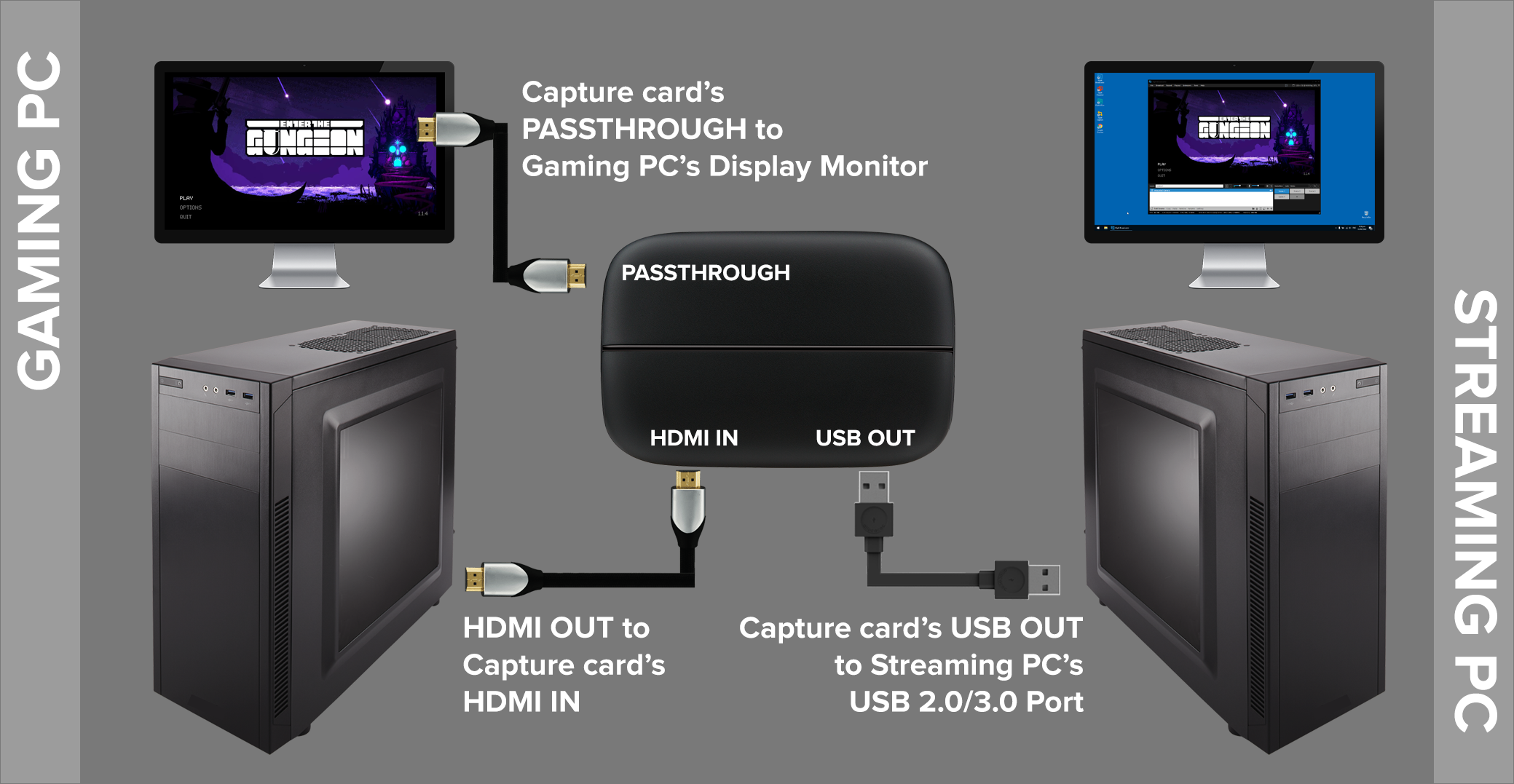
- Optional: Capture Card (for Streaming Setups): If your goal is a dual PC streaming setup, a capture card like an Elgato Cam Link, HD60 S+, or a PCIe based AverMedia Live Gamer 4K is essential. This device takes the video output from your gaming PC and feeds it into your streaming PC, allowing the streaming PC to encode and broadcast your gameplay without impacting gaming performance.
- Optional: KVM Switch: For managing two PCs with a single keyboard, video monitor, and mouse setup, a KVM switch can be incredibly convenient. This allows you to quickly switch control between your gaming PC and streaming PC with the press of a button, saving desk space and simplifying your workspace.
Investing in quality hardware upfront will save you headaches down the line, ensuring a robust and reliable connection for all your dual PC gaming endeavors.
Can Connecting Two PCs Improve Streaming Performance?
Absolutely. One of the primary drivers for gamers wanting to know how to connect two computers for gaming is the significant boost in streaming performance. This is particularly relevant for the ~60% of US gamers who value performance optimization and want to share their gameplay with others without compromise. A single PC trying to both play a demanding game and encode a high quality stream simultaneously can quickly become overwhelmed, leading to dropped frames, stuttering gameplay, and a pixelated stream.
By implementing a dual PC setup, you effectively divide the workload: one computer (your gaming PC) is solely dedicated to running the game at its highest possible settings, maximizing your in game frame rates and visual fidelity. The second computer (your streaming PC) takes over all the resource intensive tasks related to broadcasting, such as video encoding, running streaming software (like OBS Studio or Streamlabs OBS), managing alerts, and interacting with chat. This separation ensures that neither machine is overburdened.
The gaming PC sends its video output to the streaming PC via a capture card. The streaming PC then processes this clean video feed encodes it efficiently, and sends it to your chosen streaming platform (Twitch, YouTube, etc.). The result is a much smoother gaming experience for you and a consistently high quality, lag free stream for your audience. This setup is a cornerstone for professional streamers and content creators who demand both top tier gaming performance and pristine broadcast quality without sacrificing one for the other.
What Games Support Local PC-to-PC Connectivity?
The beauty of learning how to connect two computers for gaming lies in unlocking enhanced multiplayer experiences, especially for titles that thrive on local connectivity. While many modern games lean heavily on online matchmaking, a strong roster of games still supports or benefits greatly from direct PC to PC or LAN connections. This is fantastic for social gaming, which remains a key trend, allowing friends to play together in the same physical space with minimal fuss.
- Classic LAN Titles: Many older titles were built with LAN play in mind. Think back to the golden age of PC gaming with games like StarCraft Brood War, Age of Empires II, Warcraft III, Doom, Quake, Unreal Tournament, and Command & Conquer. These games often offer robust LAN support that works flawlessly with a direct PC connection.
- Sandbox and Survival Games: Titles like Minecraft and Terraria are perfect for local co op. You can easily set up a local server on one of the connected PCs, allowing others to join without needing to connect to external internet servers, often resulting in a smoother, more private experience.
- Co-op Shooters and Action Games: Some modern and older co op shooters like Left 4 Dead 2, Borderlands series, and Call of Duty often feature excellent LAN support, letting you team up with friends directly. Many indie games also prioritize local multiplayer options.
- Strategy and Simulation Games: Games like Factorio or Civilization VI can be enjoyed with friends over a local network, offering a stable environment for complex, long running sessions.
- Emulated Games: If you are into emulation, many emulators support virtual LAN play for classic console games, which can be further enhanced by a solid PC to PC connection.
Always check a game's specific features or community wikis to confirm LAN or direct IP connect support. Setting up a local connection for these games not only bypasses potential internet connectivity issues but also often provides the lowest latency, making for the most responsive and enjoyable multiplayer sessions with your friends and family.
What Are Common Troubleshooting Steps if My Two Gaming PCs Aren't Connecting?
Even with the best preparation, sometimes things do not go as planned. If you are struggling with how to connect two computers for gaming and they just are not talking to each other, do not panic! Most issues can be resolved with a systematic approach. Here are common troubleshooting steps to get your dual PC setup up and running:
- Check Physical Connections: This might seem obvious, but start here. Ensure the Ethernet cable is securely plugged into both PCs (and the router/switch, if applicable). Look for the link lights on the Ethernet ports – they should be lit and possibly blinking. Try a different cable if you suspect the current one is faulty.
- Verify IP Addresses and Subnet Mask:
- Direct Connect: Double-check that both PCs have unique static IP addresses within the same subnet (e.g., 192.168.1.1 and 192.168.1.2 with subnet 255.255.255.0).
- Router Connect: Ensure both PCs are set to obtain IP addresses automatically (DHCP) and check their assigned IPs using 'ipconfig' in Command Prompt. Confirm they are on the same network segment.
- Test with Ping: Open Command Prompt on PC 1 and type 'ping [PC2_IP_Address]' (e.g., ping 192.168.1.2). Do the same from PC 2 to PC 1. If you get replies, the basic network connection is working. If you get 'Request timed out', there is still a communication barrier.
- Firewall Settings: This is a very common culprit. Temporarily disable your Windows Defender Firewall (and any third party antivirus/firewall software) on BOTH PCs. If they connect, the firewall was the issue. Re enable it and create specific exceptions for your games and streaming software.
- Network Discovery: Confirm that Network Discovery is enabled on both PCs for the 'Private' network profile (Control Panel > Network and Sharing Center > Change advanced sharing settings).
- Update Network Drivers: Outdated Network Interface Card NIC drivers can cause bizarre connectivity issues. Visit your motherboard manufacturer's website or the NIC manufacturer's site to download and install the latest drivers.
- Restart Everything: Sometimes a simple restart of both PCs and your router/switch can resolve transient network glitches.
- Check for Conflicting Software: VPNs or other network utilities can sometimes interfere. Try disabling them temporarily.
By methodically working through these steps, you will likely pinpoint and resolve the connectivity issue, getting you back to gaming faster.
Is Connecting Two Gaming PCs Worth It for the Average Gamer?
The question of whether connecting two computers for gaming is 'worth it' really depends on your specific gaming habits, budget, and aspirations. For the average US gamer who balances their passion with work and family, optimizing enjoyment and efficiency is key. While the idea of a dual PC setup might sound like something reserved for hardcore enthusiasts or streamers, its benefits can extend to a wider audience, though with careful consideration of the trade-offs.
It is worth it if you:
- Stream Regularly: If you are looking to stream your gameplay to Twitch or YouTube consistently and want the highest quality stream without impacting your in game FPS, a dual PC setup is invaluable. It provides a dedicated encoding machine, delivering a professional quality broadcast.
- Host LAN Parties or Play Local Co-op: For friends who frequently gather for gaming sessions, a dual PC setup simplifies hosting and provides each player with a dedicated screen and smooth performance, far superior to split screen or resource strained single PC setups.
- Want Maximum In-Game Performance: By offloading background tasks and streaming duties to a second PC, your primary gaming rig can dedicate 100% of its power to the game itself, potentially allowing for higher frame rates and settings.
- Perform Other Resource Intensive Tasks: If you often edit videos, render 3D models, or run other demanding applications simultaneously with gaming, a second PC can handle these tasks while your gaming machine remains unburdened.
It might not be worth it if you:
- Are on a Tight Budget: Acquiring a second PC (even a modest one) and a capture card can be a significant investment. Consider if a single, more powerful PC with hardware encoding (e.g., NVIDIA's NVENC or AMD's AMF) might be sufficient for your streaming needs.
- Only Play Solo or Online Matchmaking: If your gaming consists mostly of single player campaigns or joining public online matches, the benefits of a second PC for local connectivity or streaming might not justify the cost and complexity.
- Value Simplicity Above All: A dual PC setup adds another layer of hardware and software to manage. If you prefer a minimalist, plug and play approach, a single, powerful system is simpler.
Ultimately, a dual PC setup is a strategic investment for specific use cases. It empowers gamers to achieve higher levels of performance and flexibility, especially in social gaming and content creation, aligning perfectly with the desire for skill building, social play, and performance optimization that many adult gamers seek.
FAQ Section
How much does it cost to set up two computers for gaming?
The cost varies widely. You will need a second PC which could range from a few hundred dollars for a basic used machine to over a thousand for a capable new one. Add to that the cost of Ethernet cables typically under 20 and potentially a capture card for streaming which can be 100 to 300. So the total investment could be anywhere from 300 to 1500 or more depending on component quality.
Do I need a special 'crossover' Ethernet cable to connect two PCs directly?
For most modern computers made after 2005 no you do not. Thanks to Auto MDIX technology in contemporary Network Interface Cards NICs a standard straight through Cat5e or Cat6 Ethernet cable will work perfectly for direct PC to PC connections. Only very old machines might still require a crossover cable.
Can I use Wi-Fi to connect two gaming PCs instead of Ethernet?
While technically possible using Wi-Fi to connect two gaming PCs is strongly discouraged for optimal performance. Wi-Fi introduces higher latency is less stable and more prone to interference compared to a wired Ethernet connection. For serious gaming or streaming an Ethernet cable provides superior speed reliability and minimal lag.
What is a dedicated streaming PC in a dual PC setup?
A dedicated streaming PC is the second computer in a dual setup specifically tasked with handling all broadcast related activities like video encoding running streaming software managing overlays and interacting with chat. This offloads these demanding processes from your main gaming PC ensuring your gameplay remains smooth and your stream quality is high.
Is a dual PC setup difficult to configure for someone new to networking?
Setting up a dual PC connection can have a slight learning curve, especially for IP address configuration or firewall rules. However this guide breaks down the process into manageable steps. With clear instructions and a bit of patience, even beginners can successfully configure their systems. It is more about following directions than advanced networking knowledge.
Can I use my two connected PCs for anything else besides gaming?
Absolutely. Beyond gaming, your connected PCs can be used for high speed file transfers between the two machines for faster backups or sharing large media files. A dedicated secondary PC can also serve as a home server a render farm for creative projects or a workstation for tasks that require isolated computing power.
Connecting two computers for gaming can truly revolutionize your play, whether you are chasing those pristine frames while streaming, building friendships in local co op, or simply want to optimize your digital playground. We have covered the how to connect two computers for gaming from direct Ethernet links to router based networks and crucial Windows settings ensuring you have the knowledge to build a robust setup. With US gamers spending significant time engaging with their passion, it is about making that time count. By separating tasks and optimizing your network, you gain performance, stability, and versatility, enhancing both your personal enjoyment and your social gaming experiences. Now that you are equipped with this knowledge, what is your biggest gaming challenge that a dual PC setup could solve? Comment below and let us know!
LAN gaming setup, Direct PC connection methods, Network configuration for gaming, Dual PC streaming setup, Performance optimization, Troubleshooting connection issues, Budget friendly hardware tips, Social gaming enhancement
35


Test Speed Between Two Computers Windows Dibujos Cute Para Imprimir . Jak Propojit Dva Po Ta E 4 Rychl A Efektivn Zp Soby How To Connect Two Computers . How To Connect An Hp27er To 2 Computers . 5 Ways To Connect Two Computers WikiHow Aid45362 V4 728px 45362 10 . How To Connect A Gaming Pc To A Monitor Dual Monitor Setup Gaming



How To Create A Network Share Windows 11 Dibujos Cute Para Imprimir . How To Connect Two Windows Or Mac Computers 9 Easy Methods Computer . How To Connect Two Computers And Share Files Using LAN Cable On WINDOWS . How To Get Game Review Codes Platforms For Influencers One Monitor Two Pcs.webp. How To Connect 2 Monitors To A PC Easy Setup Guide Connect 2 Monitors One Hdmi.webp




Gaming Desktop PC Guide 2026 Build The Ultimate Gaming Setup 2 2 3 . How To Connect Two Computers On One Set Of Speakers YouTube . How To Connect A Controller To Your PC 2026 Guide . How To Connect Two Monitors To One PC Full Guide YouTube . How To Connect Two Shapes In Word



How To Connect Two Monitors To Gaming Pc At Janet Cantrell Blog . How To Connect 2 Monitors To A Desktop Computer TAFT Independent En US 7 . How To Connect 2 Hp Monitors Together . How To Connect Two Monitors To One Computer With Hdmi YouTube . How To Set Up A Second Monitor With HDMI CitizenSide How To Connect A Gaming Pc To A Monitor 1700202900



How To Connect Two Monitors To One Computer Step By Step YouTube . How To Connect Dual Monitors To A Laptop Complete Guide How To Connect Dual Monitors To A Laptop 1024x488 . How Do I Connect Multiple Monitors To My Laptop TAFT Independent How To Connect Dual Monitors To Laptop.webp. How Much For A PC Gaming Setup Cost Top 3 Gaming Laptops Of 2026 - The Ultimate Guide . How To Connect 2 Monitors To Your Laptop Feature Image 2024 09



How To Connect Two Computers With One Mouse Garage Mouse Without . How To Connect Two Computers Using USB ByteCable How To Connect Two Computers Using USB . How To Connect Two Computers Using Ethernet Cable Network Between Two . Dual PC Streaming Setup Guide Jade Vanity Gaming Dpcsetupdgc . How To Connect 2 Pcs Together Windows 10 At Rosemary Henry Blog Aid45362 V4 728px Connect Two Computers Step 21 Version 3


How To Setup Multiple Monitors On Chromebook Dual Monitor Setup With Pc . How To Check Lan Speed Between Two Computers Dibujos Cute Para Imprimir . Connect Dell Xps 13 To Dual Monitors . How To Add A Monitor To Pc Connecting Two Monitors SCLH . How To Test Lan Speed Between Two Computers Dibujos Cute Para Imprimir