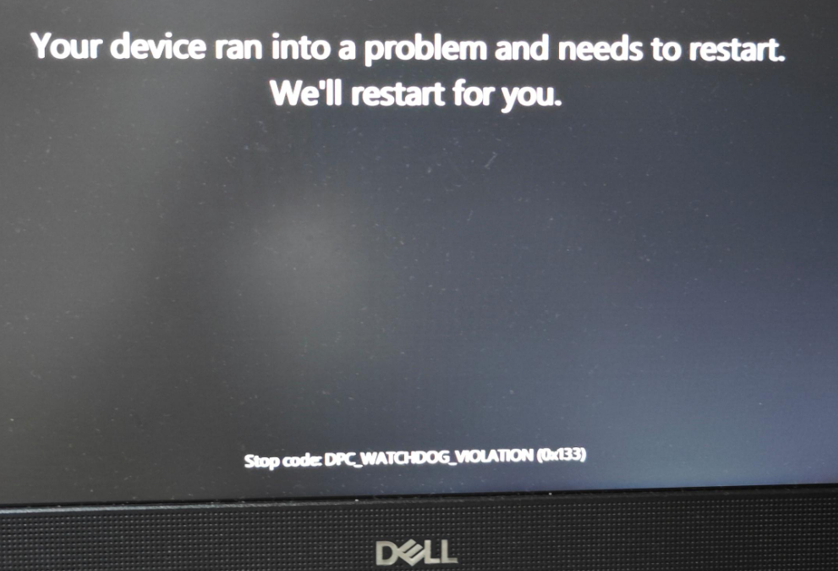
Are you a gamer constantly frustrated by your PC restarting unexpectedly in the middle of a crucial match or an immersive storyline? You are not alone. This guide is your ultimate resource for diagnosing and resolving the aggravating issue of your PC restarting while gaming. We delve into common culprits such as overheating components, inadequate power supply units, outdated or corrupted drivers, and even tricky software conflicts that plague modern gaming rigs. Understanding these problems is the first step toward uninterrupted gameplay. This comprehensive resource offers actionable, step-by-step solutions tailored for busy US gamers who seek efficient troubleshooting without the technical jargon. Learn how to monitor temperatures, assess PSU health, manage drivers, and optimize your system for peak stability in 2026's demanding gaming landscape. Get ready to reclaim your gaming sessions and bid farewell to those unwelcome restarts.
Why does my PC restart only when I game, but not during other tasks? Your PC restarts only during gaming because games push your hardware, especially the CPU and GPU, to their maximum limits. This intense load often exposes underlying issues like insufficient power from the PSU, critical overheating that triggers safety shutdowns, or driver instabilities that only manifest under extreme graphical demands. Casual tasks do not stress components enough to reveal these problems.How can I quickly check if my PC's power supply unit is failing?A quick check for a failing power supply unit (PSU) involves listening for unusual noises like loud fan grinding or clicking, observing for a burning smell from your PC's rear, and noting if restarts exclusively occur under heavy gaming load. Sudden shutdowns without a blue screen are also strong indicators. Ensure all power cables are securely connected inside the PC.Is it safe to game on my PC if it restarts sometimes but not always?No, it is not safe to ignore occasional restarts while gaming. These are clear warnings that your PC is struggling, potentially due to overheating, an unstable power supply, or critical driver errors. Continuing to game without addressing the root cause risks permanent damage to expensive components like your CPU or GPU. Prioritize troubleshooting to prevent further hardware degradation and ensure system longevity.What essential software tools should I use to monitor my PC's health while gaming?For comprehensive PC health monitoring during gaming, essential software tools include HWMonitor or NZXT CAM for tracking CPU and GPU temperatures, fan speeds, and voltages. MSI Afterburner is excellent for GPU-specific monitoring, including usage and clock speeds, and allows custom fan curves. Windows Task Manager can provide a quick overview of CPU, RAM, and disk usage. These tools help identify performance bottlenecks or overheating issues in real time.How do I ensure my PC's cooling system is optimized for demanding games?To optimize your PC's cooling for demanding games, first, ensure all internal components, especially heatsinks and fans, are free of dust buildup. Verify that case fans are configured for proper airflow, typically intake at the front/bottom and exhaust at the top/rear. Consider upgrading your CPU cooler if stock cooling is insufficient, and ensure your case has good ventilation. Monitoring temperatures with software like HWMonitor will confirm effectiveness.Will underclocking my GPU help prevent my PC from restarting while gaming?Yes, underclocking your GPU can often help prevent your PC from restarting while gaming, especially if the issue is related to overheating or power instability. By reducing the GPU's clock speed or voltage, you decrease its power consumption and heat output, making it less demanding on both the cooling system and the power supply unit. This can provide a temporary or even permanent fix if your hardware is barely meeting the minimum requirements for specific games.How important are clean internal cables for preventing restarts?Clean internal cable management is surprisingly important for preventing PC restarts, particularly in older or cramped cases. Poorly routed cables can obstruct airflow, creating hot spots within your case that lead to component overheating, a primary cause of restarts. Additionally, loose or damaged power cables can cause intermittent power delivery to components, triggering instability. Tidy cables ensure optimal airflow and reliable connections, contributing significantly to system stability during gaming.Ever been deep into a raid, clutching a 1v5 in your favorite battle royale, or just chilling in a cozy simulation game, only for your PC to suddenly restart without warning? You’re not alone. This frustrating issue of your pc restarting while gaming can instantly kill the vibe, disrupt crucial moments, and even impact your progress. As US gamers, a whopping 87% of us play regularly, often dedicating 10+ hours a week to unwind, connect with friends, or compete. A stable gaming rig isn't just a luxury; it's essential for enjoying the latest titles, staying connected on Discord, and diving into the immersive worlds we love. When your PC keeps restarting during gameplay, it's more than an inconvenience – it's a roadblock to your digital escape. But don't worry, friend, you've come to the right place. We're here to break down why this happens and, more importantly, how to fix it, so you can get back to what matters: gaming without interruption.
Why is my PC restarting while gaming?
Your gaming PC can spontaneously restart during intense gameplay for several core reasons, often related to hardware struggling under load or critical software conflicts. The system is designed to protect itself from damage by initiating a restart or shutdown when it detects a potentially harmful condition. The most common culprits include overheating components like your CPU or GPU, an insufficient or failing Power Supply Unit (PSU) struggling to provide stable power, outdated or corrupted graphics drivers, faulty RAM modules, or even deeper operating system inconsistencies. Understanding these underlying issues is crucial for effective troubleshooting, enabling you to pinpoint the exact problem and apply the right solution.
How to check if your PC is overheating and what to do?
Overheating is one of the most frequent reasons a PC will restart while gaming. When your CPU or GPU gets too hot, typically above 85-90 degrees Celsius, the system's protective mechanisms trigger a shutdown or restart to prevent permanent damage. To check for overheating, you'll need monitoring software. Tools like HWMonitor, MSI Afterburner, or NZXT CAM allow you to view real-time temperatures for your CPU, GPU, and other components. If temperatures spike significantly during gaming sessions, especially just before a restart, overheating is likely your culprit. To fix this, first, ensure your PC's internal components are clean of dust, which can clog fans and heatsinks. Improve airflow by ensuring proper fan orientation and considering better case ventilation. You might also need to reapply thermal paste to your CPU or invest in a more robust cooling solution, such as an aftermarket CPU cooler or a better-performing liquid cooling system, especially if you're running demanding AAA titles popular this month.
What are the common signs of a failing Power Supply Unit (PSU)?
The Power Supply Unit is the heart of your PC, delivering consistent power to all components. A failing or insufficient PSU can lead to unpredictable restarts, particularly when your system is under heavy load from gaming. Signs of a struggling PSU include random reboots during intense graphical sequences, a noticeable burning smell emanating from your PC, or unusual loud whirring or clicking noises coming directly from the PSU fan. If you've recently upgraded your graphics card or CPU and started experiencing restarts, your current PSU might not have enough wattage to handle the new hardware's demands. Check the wattage recommendations for your components, especially your GPU, and compare it to your PSU's rated output. Upgrading to a higher wattage, reputable brand PSU is often the most straightforward solution for power-related restart issues.
How do I update and troubleshoot graphics drivers effectively?
Graphics drivers are critical for your GPU to communicate with your operating system and games. Outdated, corrupted, or incompatible drivers are a common cause of instability, leading to crashes and restarts during gaming. To troubleshoot:
- Clean Installation: The best approach is a 'clean install'. Use a tool like Display Driver Uninstaller (DDU) in safe mode to completely remove all traces of previous drivers. Then, download the latest stable drivers directly from NVIDIA (GeForce Experience) or AMD's official websites.
- Rollback Driver: If a recent driver update caused the issue, you can roll back to a previous, stable version through Windows Device Manager.
- Beta Drivers: Avoid beta drivers unless specifically troubleshooting an issue that a beta driver addresses, as they can sometimes introduce new instabilities.
Regularly checking for driver updates, especially before playing new or graphically intensive games, is a crucial maintenance step for every gamer.
Is my RAM causing the PC to restart? How can I test it?
Faulty RAM (Random Access Memory) can lead to various system instabilities, including random restarts and crashes, as it's where your system temporarily stores data for quick access. While less common than overheating or PSU issues, it's worth investigating. To test your RAM:
- Windows Memory Diagnostic: This built-in tool is a good starting point. Search for
Diagnosing PC restarting while gaming, Overheating solutions for gaming PCs, Power Supply Unit troubleshooting, Graphics driver updates for stability, RAM testing for gaming issues, Windows Event Viewer analysis, System monitoring tools for gamers, Preventing game crashes and restarts, Gaming PC maintenance tips, Expert advice for random shutdowns.
35#1 Gallery pc restarting while gaming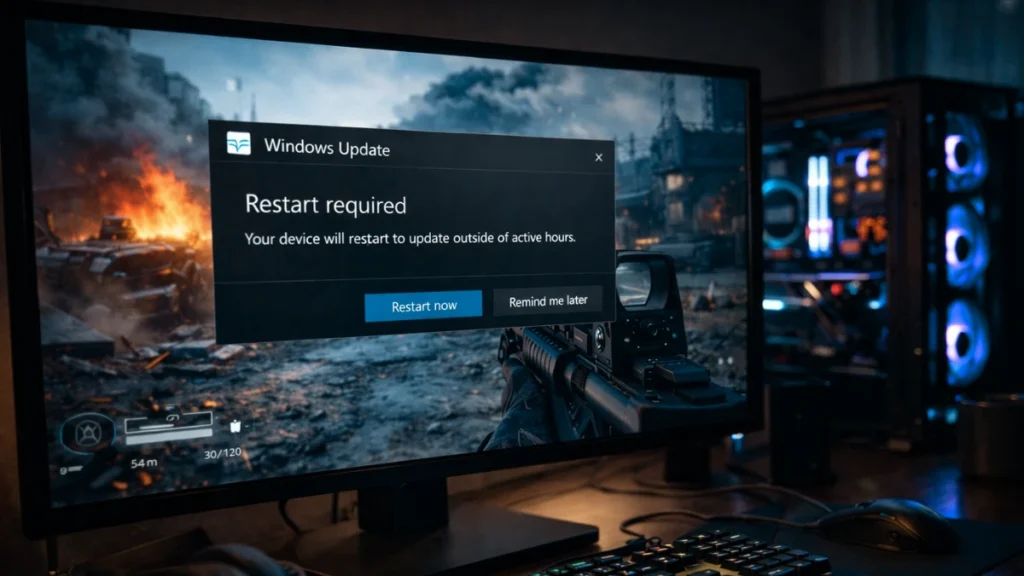


Stop Windows Update From Restarting Your PC While Gaming Windows Update Gaming Pc Setup. Fix PC Restarts When Playing Games Not Overheating YouTube . Gaming PC Restart During Gameplay How To Fix It Volta PC Home Of Gaming Pc Restart During Gameplay . Tivo Restarting Randomly At Vernon Virgil Blog . Pc Restarts While Playing Games Pc Lags While Gaming Pc Shutdown
#2 Gallery pc restarting while gaming
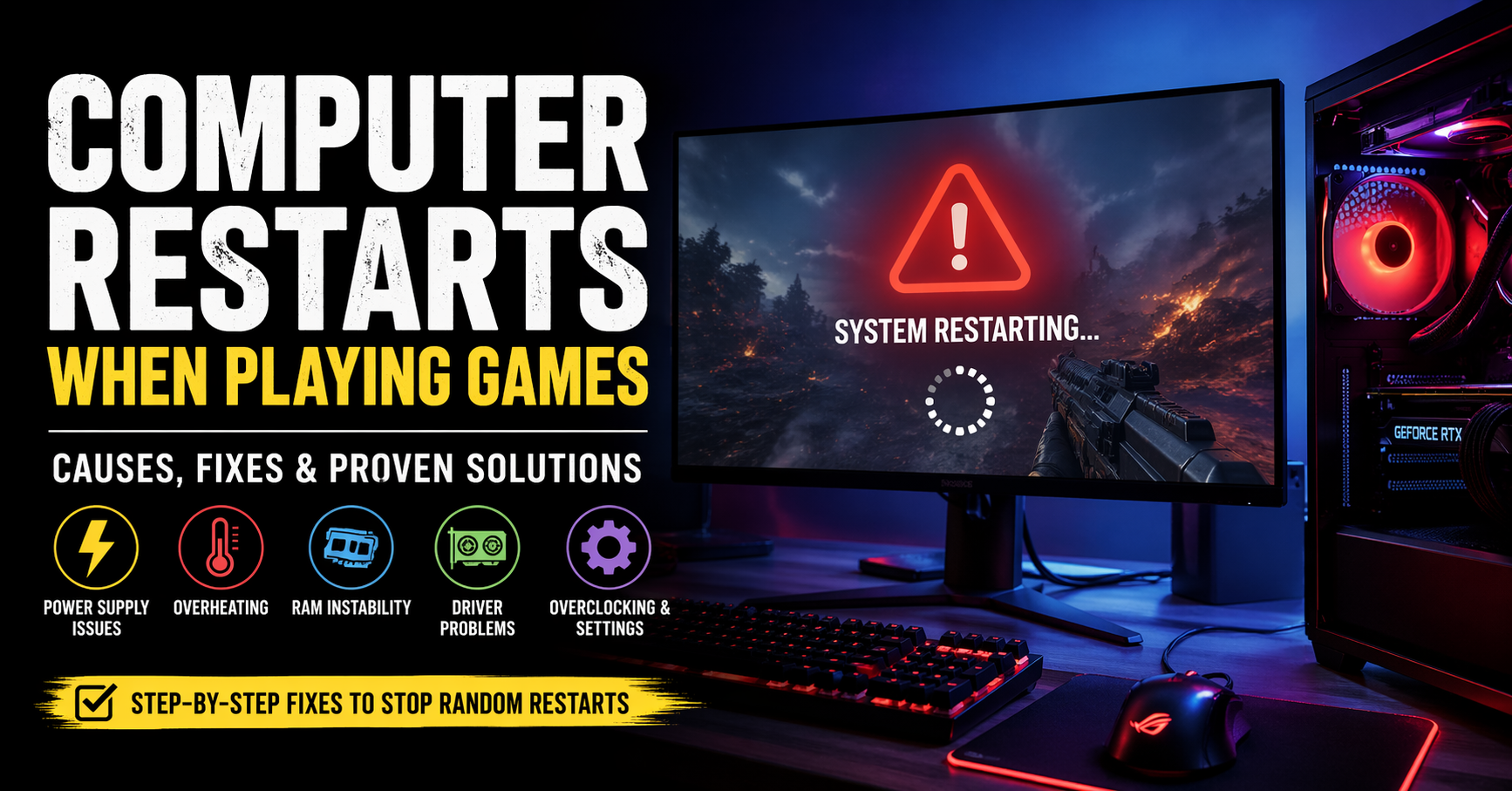
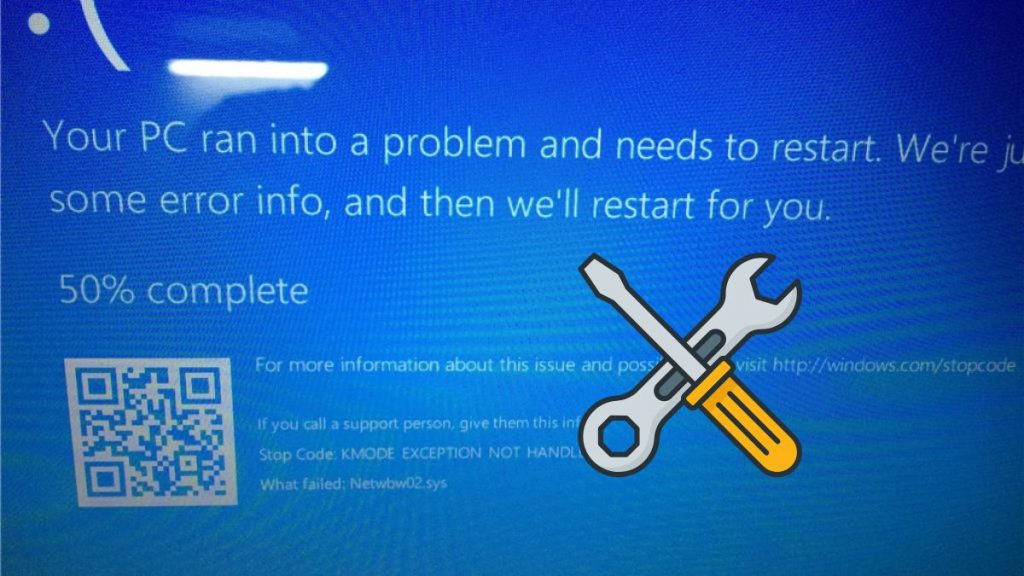
Why Your Gaming PC Is Restarting And The Simple Fix YouTube . PC Restarts While Gaming SOLVED Tech4Gamers PC Restarts While Gaming . Computer Restarts When Playing Games Causes Fixes Proven Solutions Computer Restart While Playing Games . How To Fix PC Shutting Down While GAMING Or Working YouTube . Why Does My PC Restart While Gaming Causes Fix GeeksDigit Com Pc Restart While Gaming 1024x576
#3 Gallery pc restarting while gaming


Why Does My PC Restart While Gaming Causes Fix GeeksDigit Com Fix Gpu Keeps Crashing . PC Restarts While Gaming SOLVED Tech4Gamers PC Restarts While Gaming 1 1068x580 . Fix PC Restarting When Playing Games Without Error Messages Windows 10 . 6 Ways To Fix Computer Suddenly Restarts While Playing Games Fix Error Computer Restarts While Playing Games.webp. PC Restarts While Gaming Windows 11 YouTube Hqdefault
#4 Gallery pc restarting while gaming

HOW TO FIX PC Restarts And Crashes While Gaming RX580 YouTube Hqdefault . How To Fix Computer Restarts When Gaming Solutions 2024 How To Fix Computer Restarts When Gaming . Why Does My PC Keep Restarting Top Causes And Fixes Explained ACEMAGIC 1200 675 1 3f5768a2 54bb 401a A4d4 . Fix PC Restarts While Gaming Error With These Methods Now MiniTool Pc Restarts While Gaming Thumbnail . Pc Restarts While Playing Games PC Builds Modding
#5 Gallery pc restarting while gaming

How To Fix A PC That Randomly Turns Off While Gaming 2026 Guide How To Fix A PC That Randomly Turns Off While Gaming 2025 Guide 300x300 . PC Freezes While Gaming Solutions Top Causes Fix Pc Restart While Gaming 211x150 . Why Does My PC Keep Restarting 8 Causes Fixes Revealed Why Does My PC Keep. How To Fix PC Restart While Gaming In Windows 11 GeeksDigit Com Fix Windows Restart 100x67 . After Windows 11 The System Frequently Restarts While
#6 Gallery pc restarting while gaming

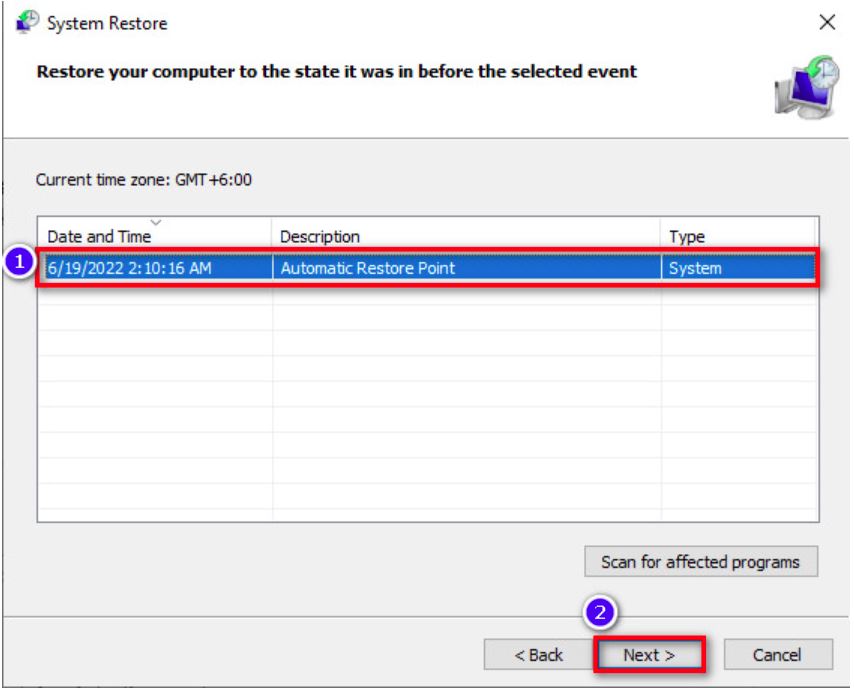
What S An IPS Monitor Benefits Uses Full Guide How To Restart Pc . Why Does My PC Restart While Gaming Causes Fix GeeksDigit Com Repair Pc . PC Restarts While Gaming SOLVED Tech4Gamers System Restore . How To Fix PC Restart While Gaming In Windows 11 GeeksDigit Com Fix Windows Restart . SOLVED My PC Keeps Restarting Itself While Playing Games Tom S Proxy.php
#7 Gallery pc restarting while gaming


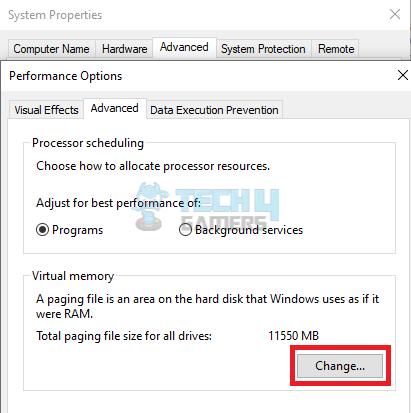
Roblox Keeps Restarting On PC Fix It Fast On Windows 2026 YouTube . How To Optimize Your Gaming PC For 2026 Way Of The Dogg What Is The Fastest Way To Optimize A Gaming PC In 2026 . Gaming PC Random Restarts Under Load A No Guesswork Fix Plan Fix My Blog Ai Gaming Pc Random Restarts Under Load A No Guesswork Fix Plan Featured . My PC Randomly Restarts While Gaming How To Random Gaming Restarts . PC Restarts While Gaming SOLVED Tech4Gamers Virtual Memory Section