Unlock peak productivity and gaming performance by mastering how to map keys in Windows. This comprehensive guide is tailored for Gen Z and Millennial users, offering actionable insights and trending tips to customize your keyboard for a seamless digital experience. Learn about the best tools, common use cases, and advanced techniques to rebind keys, create custom hotkeys, and enhance your workflow across Windows 10 and 11. Whether you are a student, professional, or avid gamer, optimizing your key layout can save precious seconds and improve accessibility, making everyday tasks more intuitive and efficient. Discover how to leverage native Windows features and popular third-party applications to transform your keyboard into a powerful command center. Stay ahead with 2026 insights on key mapping, ensuring your setup is modern and future-proof. Navigate your digital life with unparalleled speed and precision.
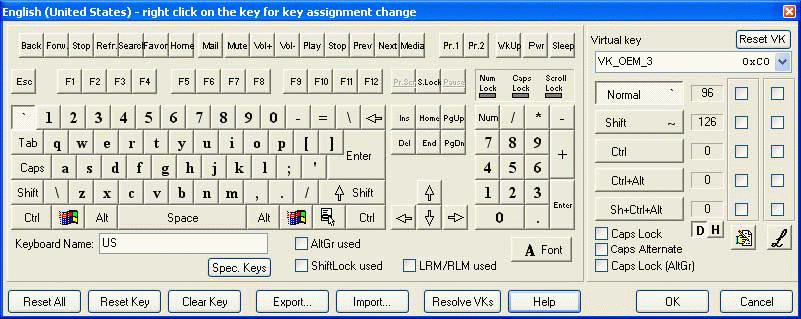
- What is key mapping in Windows? Key mapping in Windows allows you to reassign the function of any key on your keyboard to perform a different action or act as another key. This customization enhances efficiency and adapts your keyboard to your specific needs.
- Why should I map keys in Windows? Mapping keys is beneficial for improving productivity by creating custom shortcuts, optimizing gaming controls for better responsiveness, enhancing accessibility for users with specific needs, and automating repetitive tasks.
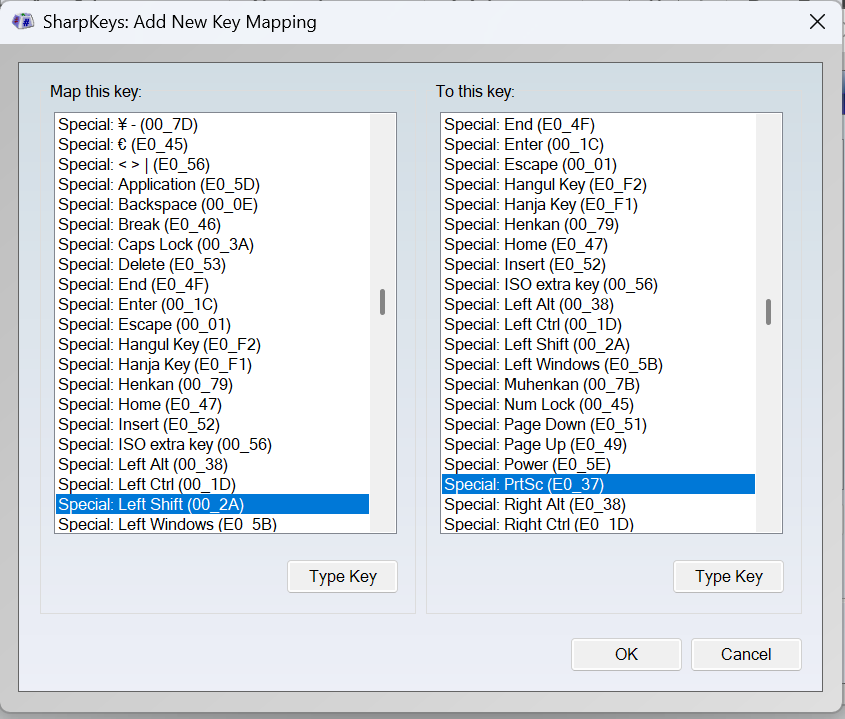
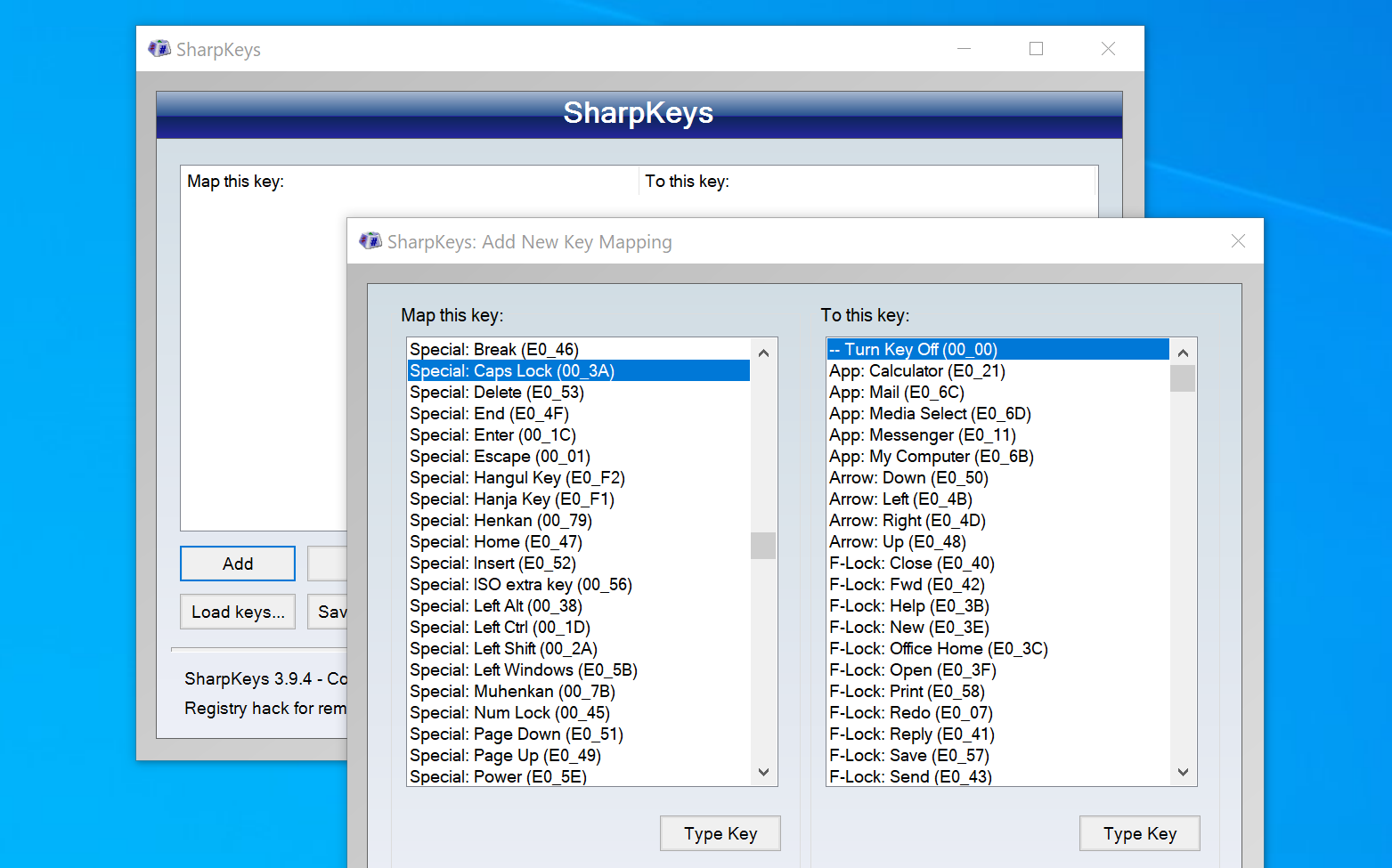
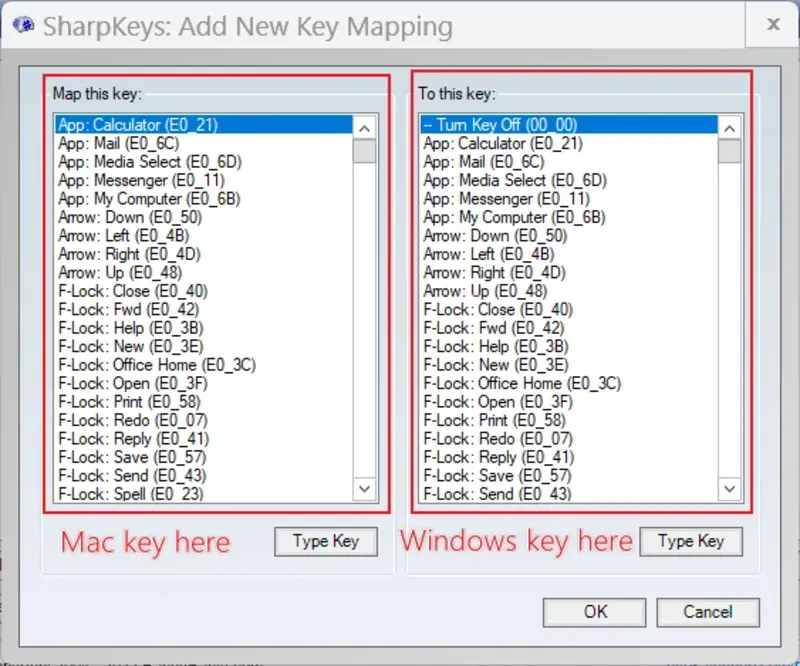
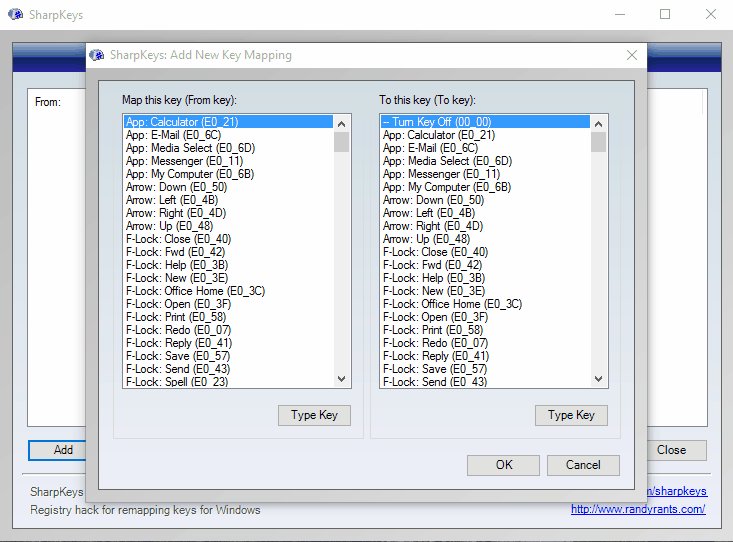
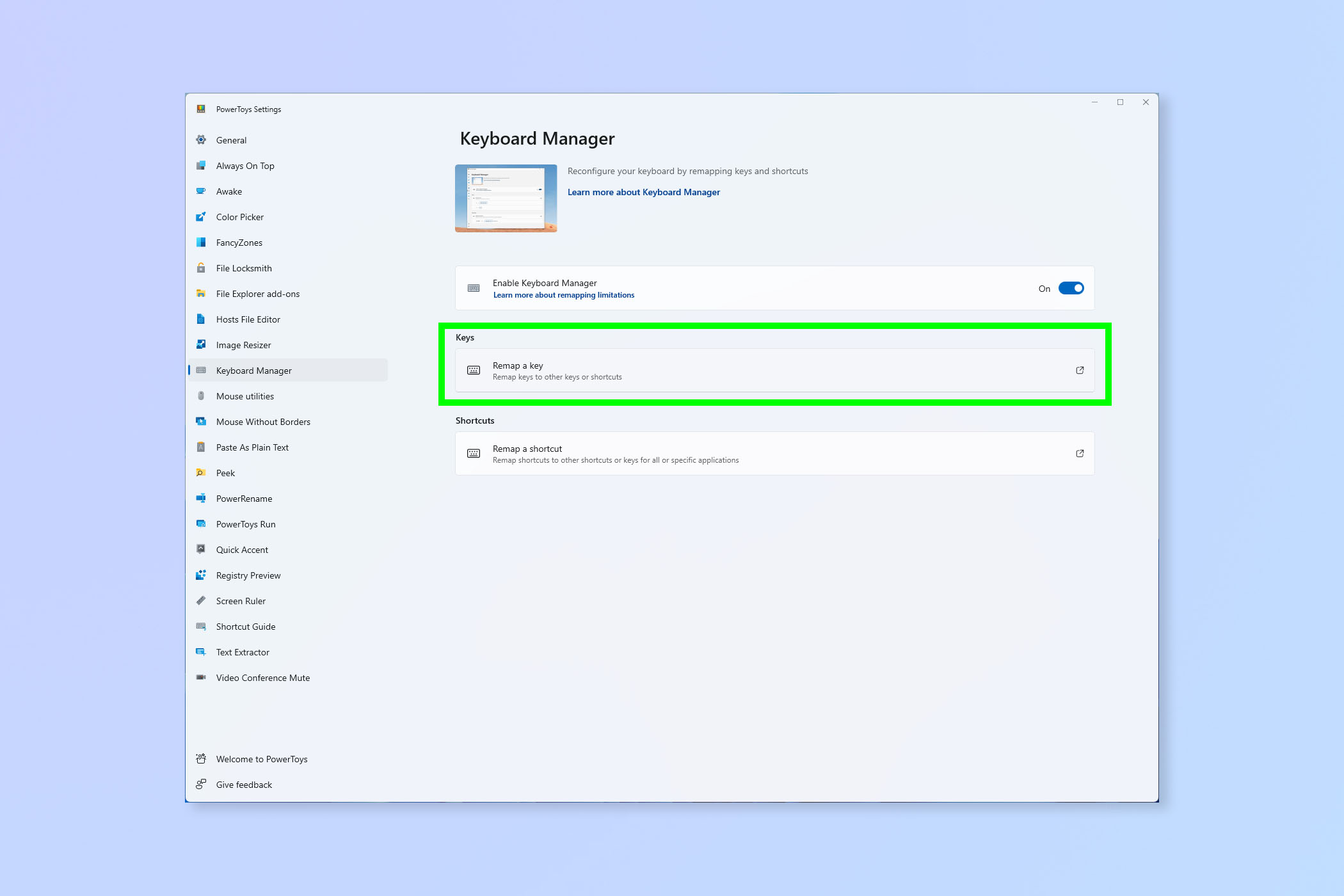
- Are there free tools to remap keys in Windows? Yes, absolutely. Free and popular tools include Microsoft PowerToys Keyboard Manager, which is officially supported, and SharpKeys, a reliable open-source utility that modifies the Windows registry directly.
- Is it safe to remap keys in Windows? Yes, when using reputable software like Microsoft PowerToys or SharpKeys, it is generally safe. Always download tools from official or trusted sources to avoid potential security risks.
- Can I map any key to any function? Most keys can be remapped, but certain system-critical keys might have limitations or require advanced scripting (e.g., with AutoHotkey). Common remappings include swapping Caps Lock for Ctrl or creating custom hotkeys.
- How do I revert key mappings if I make a mistake? Most key mapping tools provide an easy way to revert changes. For PowerToys Keyboard Manager, you can simply delete the custom mappings. SharpKeys offers an option to delete all mappings and restore defaults.
- Does key mapping affect all applications? Generally, key mappings apply system-wide, affecting all applications. However, some advanced tools like AutoHotkey allow you to create application-specific mappings, providing more granular control.
Hey Windows users. Ready to level up your desktop game in 2026? Learning to map keys in Windows is not just for power users anymore. It is a game-changer for anyone looking to boost productivity, streamline workflows, or gain an edge in gaming. This guide cuts the fluff and gets straight to showing you how to customize your keyboard for maximum efficiency and personalized control.
Forget repetitive clicks and endless menu diving. By remapping keys, you can assign custom actions to almost any key, turning mundane tasks into swift operations. This is especially vital for the mobile-dependent generation that values speed and direct interaction. Dive in to discover the best tools and methods to make your Windows experience truly yours.
Frequently Asked Questions
Where can you customize keyboard mapping in Windows 11?
You can best customize keyboard mapping within Windows 11 via the native **Microsoft PowerToys Keyboard Manager** or reliable third-party tools like **SharpKeys**. These applications provide direct access to key remapping functionalities.
How do Local MAPs relate to custom Windows key mappings?
Custom key mappings significantly boost your productivity by quickly launching your preferred digital **Maps** app or toggling navigation features. For example, assign a hotkey to instantly pull up your favorite Local MAP for route planning or checking traffic without manual clicks. Optimize your daily commutes and discoveries by integrating your key mapping with mapping applications.
What are the best tools for Windows key remapping?
For seamless key remapping, consider these top-rated options for immediate, practical use:
- Microsoft PowerToys Keyboard Manager
- SharpKeys for direct registry modifications
- AutoHotkey for advanced scripting and automation
Quick Local Guide Table
Here is a quick look at key tools for mapping keys in Windows:
- Tool / Feature: Microsoft PowerToys Keyboard Manager | Location / Type: Windows Store / Microsoft Utility
- Tool / Feature: SharpKeys | Location / Type: GitHub / Third-Party Registry Tool
- Tool / Feature: AutoHotkey | Location / Type: Official Website / Scripting Language
All maps focus on Map Keys In Windows
Boost productivity with custom key mappings Optimize gaming controls Enhance accessibility features Simplify complex shortcuts Streamline workflow in Windows
35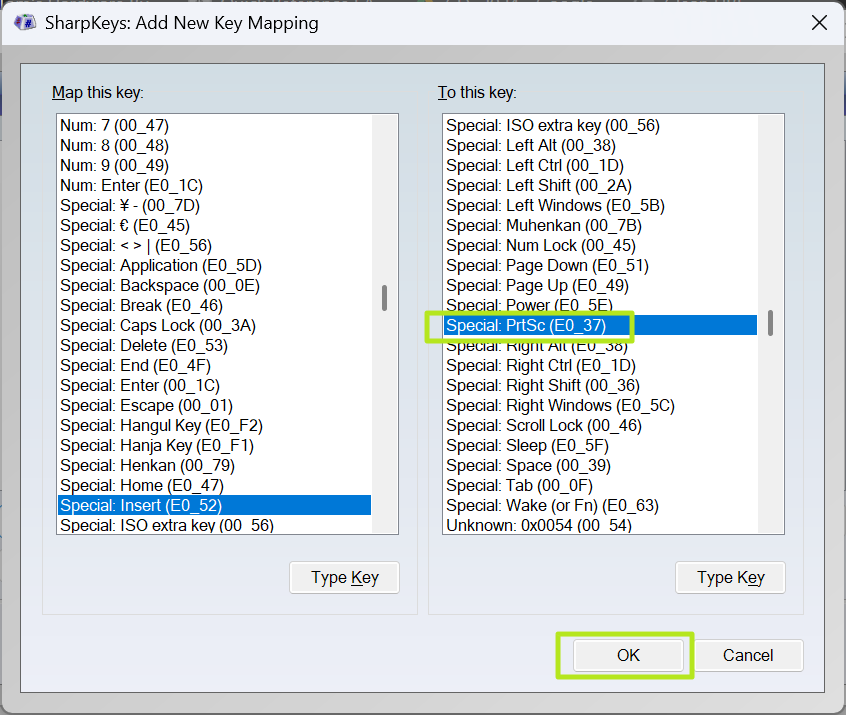
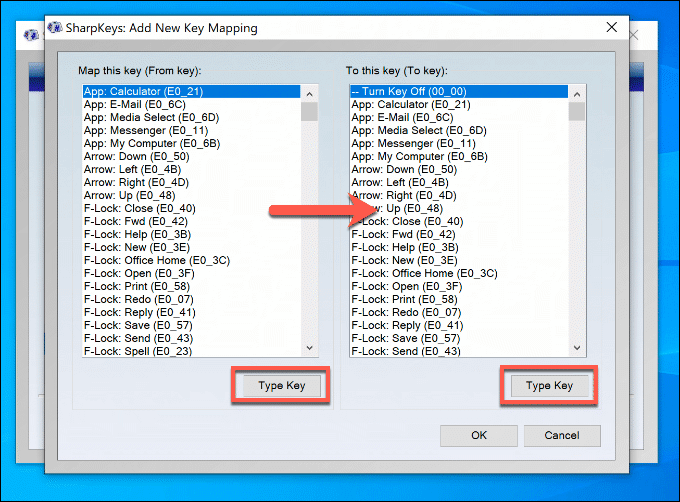
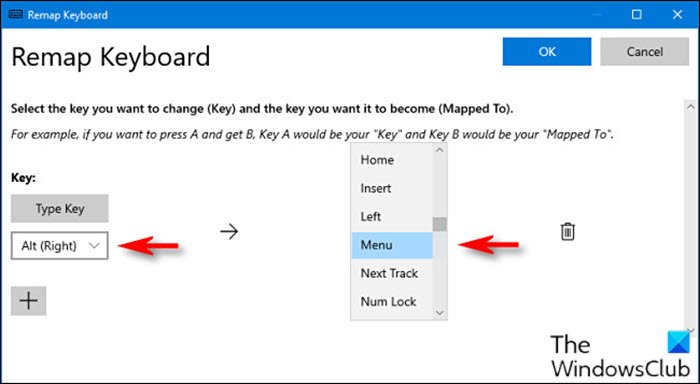
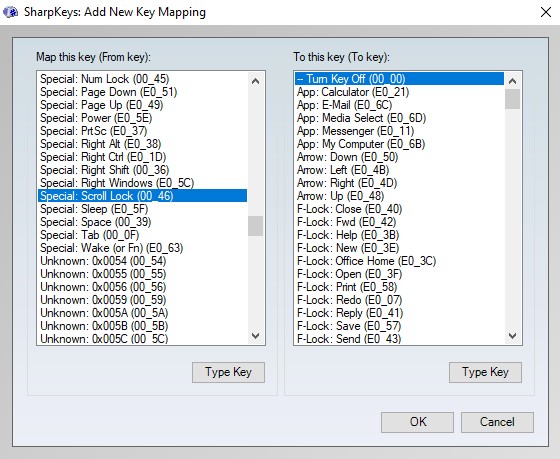

How To Remap Any Key On Your Keyboard In Windows 11 Or . How To Remap Keys On Windows 10 SharpKeys Add Button Options . How To Use Windows Key Shortcut Guide In PowerToys Map Menu Key On Keyboard . How To Remap Keyboard In Windows 10 In 2021 Guide Beebom Select Keys . Microsoft Maps Keyboard Shortcut Keys Keyboard Shortcut Keys
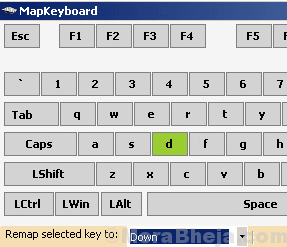

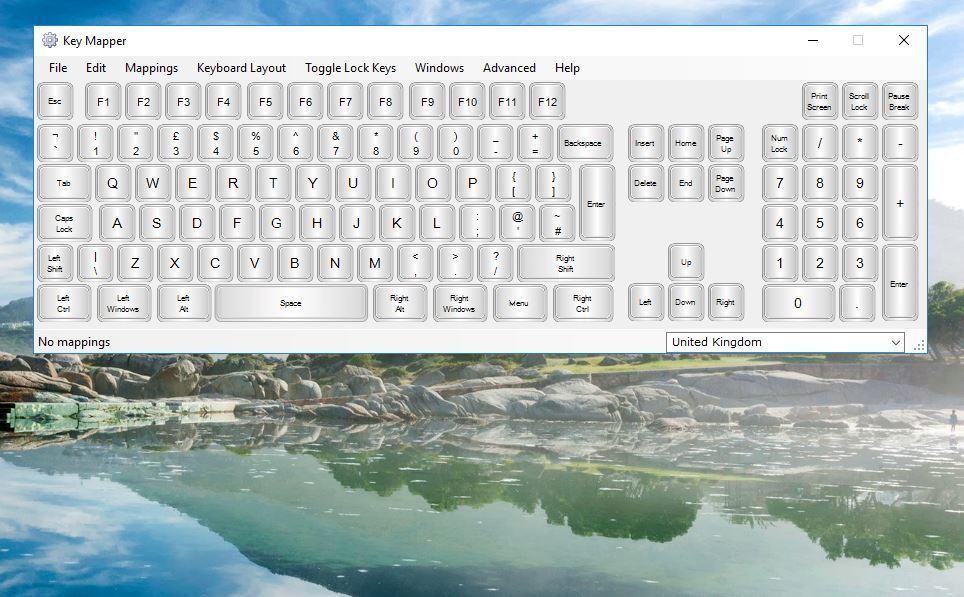

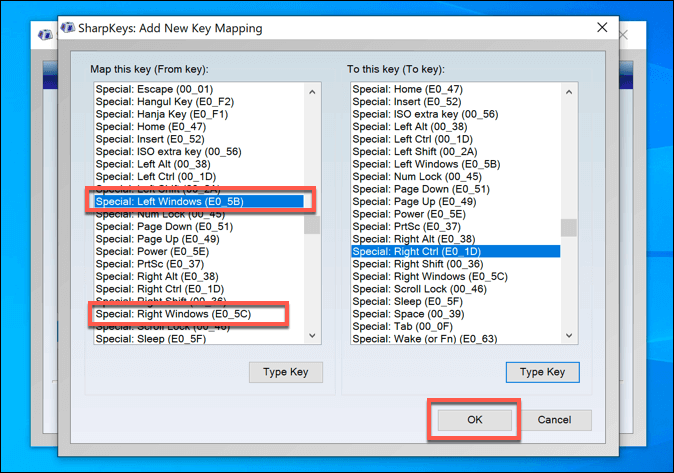
Sharing Keyboard Mapping How To Remap Any Key On Your Keyboard In Mapkeyboard Min . Notes From The Field Keyboard Mapping Issues With IGEL Linux Endpoints . Best Key Mapper Tool For Windows 11 Free Easy Options Key Remap7 . Computer And Internet Tricks Map Keyboard Key To A Different Key When 4 . How To Fix A Broken Windows Keyboard Key SharpKeys Map


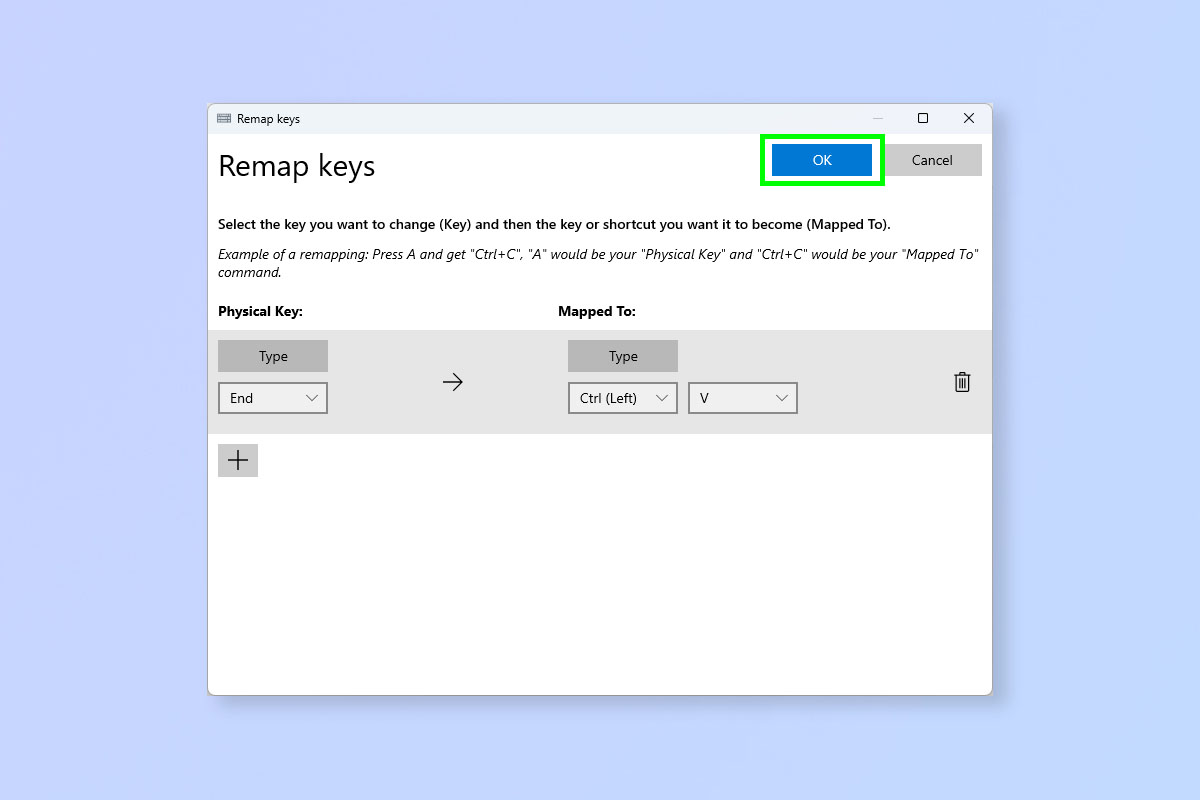
How To Remap Keyboard In Windows 10 In 2021 Guide Beebom KeyMapper . How To Unlock Keyboard Keys In Windows 10 At Jayden Nobbs Blog Keyboard Map . 3 Ways To Remap Keyboard Keys In Windows 11 Guiding Tech Click On Ok 4 768x533 . Windows 10 Pro 2026 Keys Online Ru ????? ??? Windows 10 Pro ???? 2026 . How To Remap Keys On Windows

Methods To Reassign Keyboard Keys In Home Windows 11 Forbes Panama Sharpkeys4 . How To Remap Any Key Or Shortcut On Windows 11 Snag Fa8b82d . Configuring A Windows Keyboard For Mac Or Vice Versa Mapping The Mac Key And Windows Key.webp. TataNotes Web Personal Blog Sharpkeys Add Mapping . Best Free Key Mapping Software For Windows Sharp Keys Fs 12 04 2015
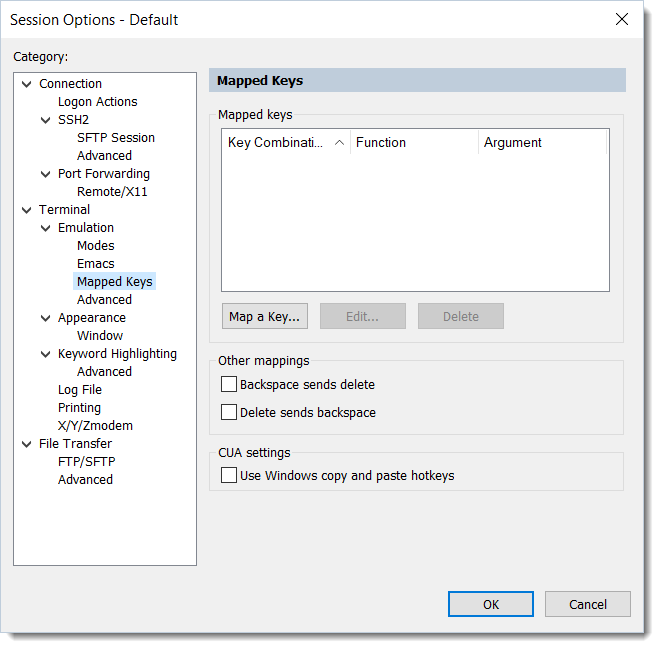
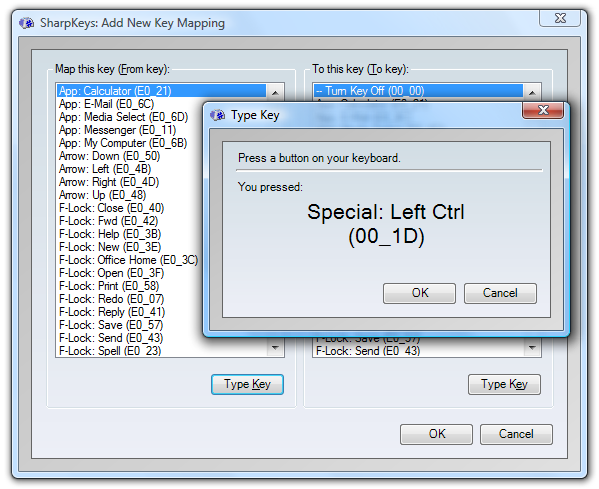
How To Map A Keyboard Shortcut To Perform A Menu Toolbar Function In Map Key Session Options Default Mapped Keys Category . Computer Repairs Blog On How To Map Any Key To Any Key On Windows 7 Or Sharpkeys Add New Key Mapping . Windows 11 2026 Roadmap Copilot Expansion And Long Overdue UI Fixes KAD Featured Windows 11 2026 Roadmap . Macos To Windows Key Mappings Ecosystem Directory Market Dev Opengraph. How To Remap Keys On Windows



Best Key Mapping Apps For Android 2026 Best Key Mapping Apps For Android . MapKeyboard For PC Windows 2 0 Download Screen 0 . Getting Started With Map APIs And Controls Windows Developer Blog 1 Newkey . Key Ativadora 2026 Windows 10 Pro Entrega Imediata Softwares E 941827340 Key Ativadora 2025 Windows 10 Pro Entrega Imediata BB3Q.webp. 3 Best Controller Mapping Software For Windows 11 3 Best Controller Mapping Software For Windows 11.webp




Free Windows 10 11 Product Keys For 2026 Official KMS Generic Keys Free Windows 10 11 Product Keys For 2025 1 . Microsoft Logos 2026 Figma. Change Keyboard Mapping Windows 10 LVLE Key Remap6 . Windows 2026 El Concepto Futurista Que Imagina Un Windows M S Ligero Windows 2026 1600x900 . Microsoft Windows Developer Tools 2026 Build Key Takeaways Hero 1320x880