Unlock the secrets of Roblox render technology with our comprehensive guide designed for the 2024 gaming landscape. Whether you are a budding GFX artist or a seasoned game developer, understanding how to manipulate lighting and shaders is essential. This trending topic covers everything from exporting character models to Blender for high resolution thumbnails to optimizing in game graphics using the Future is Bright engine. We dive deep into the technical nuances of ray tracing and path tracing to help your creations stand out on the platform. Our guide provides navigational tips for navigating the complex world of 3D modeling and rendering specifically for Roblox creators. Discover how the latest updates in Roblox Studio are changing the way players perceive visual fidelity in modern experiences across various devices.
How do I make a high quality Roblox render?
To create a high quality Roblox render, you should export your character from Roblox Studio as an OBJ file and import it into Blender. Use the Cycles rendering engine for the best lighting and shadows. Make sure to apply PBR textures and use a three point lighting setup to make your model stand out. Finally, use the Denoising feature to ensure a crisp, clean final image.
What is the best software for Roblox renders?
Blender is widely considered the best software for Roblox renders because it is free, powerful, and has a massive community of creators. It allows for advanced lighting, realistic shaders, and high resolution output that far exceeds what is possible directly within Roblox Studio. Other options include Cinema 4D, but Blender remains the top choice for most GFX artists today.
Why are my Roblox renders blurry or grainy?
Blurry or grainy renders are usually caused by a low sample count in your rendering engine or a lack of denoising. To fix this, go to your render settings in Blender and enable the Denoise option. You can also increase your Max Samples count to allow the computer more time to calculate the light, which results in a much smoother and clearer image.
How do I export my Roblox avatar for rendering?
Open Roblox Studio and insert your avatar using a plugin like Load Character. Right click on the character model in the Explorer window and select Export Selection. Save the file as an .obj and make sure the associated texture file is saved in the same folder. This file can then be imported into any 3D modeling software for high quality rendering.
Can I render Roblox characters on a low end PC?
Yes, you can render on a low end PC by using the Eevee engine in Blender instead of Cycles. Eevee is a real time engine that uses your graphics card more like a video game, making it much faster for older hardware. You should also lower your output resolution and use simplified textures to keep your computer running smoothly while you work on your art.
Most Asked Questions about Roblox Render
Beginner Questions
Getting started with rendering can be confusing because of the technical terms involved. Many beginners ask how to even move the camera or why their textures are missing. The ultimate living FAQ is here to tell you that these are normal hurdles. Start by mastering the export process from Studio before you worry about complex shaders. Most people find that their first ten renders are just practice for the greatness to come. Don't be afraid to make mistakes as they are your best teachers in the world of 3D art.
Builds & Classes
In the context of rendering, your builds are the environments you create to showcase your characters. You should think about the theme of your render whether it is a warrior class or a simple townsperson. Choosing the right props can tell a story without using any words at all. Many artists create specific lighting rigs that they reuse for different character classes to maintain a consistent style. Building a library of high quality assets like trees and furniture will save you hours of work in the long run. Focus on building a scene that complements your character's personality.
Multiplayer Issues
While rendering is usually a solo activity, you might encounter issues when trying to render multiple characters at once. High part counts from several avatars can slow down your software and cause crashes if you aren't careful. It is best to import characters one by one and simplify their geometry where possible. You can also use low resolution proxy models while you are setting up the scene to keep things fast. Once you are ready for the final render, you can swap them back to the high resolution versions. This ensures your computer doesn't get overwhelmed by the multiplayer data.
Endgame Grind
The endgame of a Roblox render artist is creating professional level GFX for top tier games. This requires a deep understanding of compositing and post processing in software like Photoshop. You aren't just hitting a render button; you are painting with light and color to create a masterpiece. The grind involves learning how to use nodes for complex materials and mastering the physics of cloth and hair. It takes months of daily practice to reach the level where your work is indistinguishable from professional studio art. Stay focused on the goal and keep pushing your technical boundaries every day.
Bugs & Fixes
Common bugs in Roblox rendering include missing textures, inverted normals, and broken rigs. If your texture is missing, check that the file path in your 3D software is correct and that the image file hasn't been moved. Inverted normals make your model look inside out and can be fixed by recalculating the outside in your mesh settings. If your rig is broken, you may need to re-parent the mesh to the bones using automatic weights. Always keep a backup of your original export so you can restart if a file becomes corrupted. Solving these technical bugs is a huge part of the learning process.
Tips & Tricks
One of the best tricks is using an HDRI for lighting as it provides realistic reflections for free. Another great tip is to use the Bevel modifier on sharp edges to catch small highlights that make objects look real. You can also use a small amount of bloom to make glowing parts feel like they are actually emitting light. Don't forget to use the Rule of Thirds when placing your camera to create a more balanced and professional composition. Finally, always save your work frequently because rendering software can be unpredictable when you are pushing it to the limit. These small habits will make your workflow much smoother and more enjoyable.
Still have questions?
Check out the official Roblox Developer Hub or join a GFX Discord community to get real time help from other artists. You can also find deep dive tutorials on YouTube that cover specific versions of Blender and Roblox Studio. The community is always happy to help a newcomer find their way in the world of 3D rendering. Keep creating and your skills will grow faster than you think!
The world of Roblox rendering is a fascinating bridge between a simple game platform and professional 3D artistry. It allows creators to express their vision with incredible detail and share it with a massive global audience. By understanding the basics of lighting, textures, and composition, you can turn a simple avatar into a work of art. This matters because it gives you the power to market your games and build a brand that stands out. Whether you want to be a professional developer or just make cool art for your friends, mastering the render is your first step. It is a journey of constant learning and creativity that never truly ends. One interesting takeaway is that many professional 3D artists actually started their careers by making Roblox GFX in their bedrooms!
Have you ever wondered how top tier creators make their avatars look like movie stars in those epic thumbnails? You are likely asking what is the best way to do a Roblox render in the current year. I remember my first attempt at making a GFX for my game. It was a blocky mess that looked more like a digital accident than a professional render. But after years of tinkering with light sources and shader nodes I realized that rendering is more of an art than a technical chore. Today we are exploring the deep world of visual fidelity to turn your standard blocks into cinematic masterpieces. We will look at why professional renders matter and how you can achieve them with simple tools.
The Evolution of Roblox Visuals
The platform has moved far beyond its simple plastic origins from a decade ago. Every major update brings us closer to photorealism through better engine capabilities. You can now use advanced lighting systems that simulate how photons bounce off surfaces in real time. This change means your games can have moody shadows and glowing neon lights that feel truly immersive for players. Most successful developers now prioritize visual identity as a core part of their brand strategy to attract more visitors to their experiences.
Why High Quality Rendering Matters
- Higher click through rates on game thumbnails.
- Better player retention due to immersive atmosphere.
- Professional branding for your Roblox developer portfolio.
- Ability to showcase complex character designs clearly.
When you focus on a Roblox render you are essentially telling the story of your game through a single frame. A good render captures the emotion of the gameplay whether it is a scary horror map or a bright simulator world. By mastering these techniques you give yourself a massive edge in the competitive marketplace where thousands of games fight for attention. The modern player expects a certain level of polish that only professional rendering techniques can provide today.
Step by Step to Your First Blender Render
Many creators prefer using external software like Blender because it offers more control over the final image output. You start by exporting your character as a wavefront file directly from the Roblox Studio environment. This file contains all the geometry and texture data needed for a high quality setup in a professional 3D suite. Once you import this into Blender you have access to powerful engines like Cycles or Eevee for lighting. Cycles is great for realism because it uses path tracing to simulate how light interacts with different materials and surfaces.
Optimizing Your Scene for Success
Setting up your camera and lighting is the most critical phase of the rendering process for any creator. You should use a three point lighting setup to ensure your character is properly illuminated from all necessary angles. Adding a rim light helps separate the character from the background which creates a sense of depth and professionalism. Don't forget to use PBR textures which allow surfaces to react realistically to light by defining roughness and metallic properties. These small details make the difference between a flat image and a vibrant render that pops off the screen.
Beginner / Core Concepts
1. **Q:** How do I even start making a basic Roblox render? **A:** I totally get why this feels overwhelming at first because there are so many buttons to click! To start you just need to open Roblox Studio and use the Export Selection tool on your character model to get an OBJ file. Then you bring that file into a free program like Blender which is where the real magic happens. I suggest starting with the Eevee engine in Blender because it is fast and gives you instant feedback on your changes. Just remember to check the Use Nodes box in the shading tab so your textures actually show up correctly. You have got this just take it one step at a time!
2. **Q:** Why does my character look like it is made of grey clay when I import it? **A:** This one used to trip me up too so don't worry about it being a mistake! When you import an OBJ file Blender doesn't always automatically connect the image files to the 3D model geometry. You need to go into the Shading workspace and add an Image Texture node then link it to the Base Color of your Principled BSDF. It is like putting a sticker on a toy to make it look finished and colorful again. Once you do this your character skin and clothes will appear exactly as they do in the game world. Try doing this with a simple hat first and you will see how easy it becomes!
3. **Q:** What is the difference between Studio rendering and Blender rendering? **A:** Think of it like taking a photo with a phone versus using a professional DSLR camera in a studio. Roblox Studio is great for in game performance but it has limits on how many light bounces it can calculate. Blender allows you to spend minutes or even hours calculating a single frame which results in perfect shadows and reflections. You use Studio for the gameplay experience and Blender for the marketing materials like thumbnails and icons. It is all about choosing the right tool for the specific job you are trying to finish today. Give both a try to see the visual difference yourself!
4. **Q:** Do I need a powerful computer to make a good render? **A:** I hear this concern a lot but you really do not need a NASA computer to make cool art! While a fast GPU helps speed up the process you can still make amazing renders on an older laptop by using the right settings. You can use the Eevee engine which is very light on resources or just lower your sample count in the Cycles engine. The most important part of a render is the composition and lighting rather than the raw power of your hardware. Focus on learning the basics of color theory and you will see great results regardless of your specs. You can definitely make it work with what you have!
Intermediate / Practical & Production
5. **Q:** How do I make the hair and accessories look shiny and realistic? **A:** This is where things get really fun because you start playing with material properties like a pro! You want to look at the Roughness and Specular sliders in your shader settings to control how light bounces off. For plastic hair you might want a lower roughness to give it that polished look that catches the light beautifully. If you want to go deeper try adding a Noise Texture to the roughness input to create subtle imperfections. It makes the object feel more like a real item and less like a digital perfect block. Experiment with these sliders tonight and see how the light changes on your model!
6. **Q:** What is the best lighting setup for a dramatic Roblox character render? **A:** I love talking about lighting because it completely changes the mood of your entire project! The classic three point lighting setup is your best friend here consisting of a key light a fill light and a rim light. The key light provides the main illumination while the rim light hits the edges of your character to make them stand out. I always suggest using an HDRI background to get natural reflections from the sky and surrounding environment. This technique adds a layer of realism that is very hard to achieve with just standard lamps alone. Try moving your lights around to create long shadows for a more mysterious vibe!
7. **Q:** How can I fix the graininess in my final render images? **A:** That grainy look is called noise and it happens when the computer hasn't finished calculating all the light paths yet. The easiest fix is to enable the Denoising feature in the render properties tab which cleans up the image instantly. You can also increase the number of samples but this will make the render take a bit longer to finish. I usually find that a sample count of 128 with denoising is the sweet spot for high quality thumbnails. It saves time while still looking crisp and clean for your audience to enjoy. Give denoising a shot on your next export and you will be amazed!
8. **Q:** How do I pose my Roblox character without it looking stiff? **A:** Posing is the soul of your render so you want to avoid that default T pose at all costs! I recommend using a plugin like the Animation Editor in Studio to pose your character before you export it. Alternatively you can use a Rig in Blender which allows you to move the limbs just like a real action figure. Try to add some slight tilts to the head and shoulders to create a more natural and dynamic silhouette. Think about what the character is doing and let their body language tell that specific story clearly. Practice making a few different poses today to see which feels most alive!
9. **Q:** Can I use PBR textures from the internet on my Roblox models? **A:** Yes and honestly this is the secret sauce that makes modern renders look so incredible! PBR stands for Physically Based Rendering and it uses maps for things like normal displacement and ambient occlusion. You can find free textures on sites like Poly Haven and apply them to your character or environment in Blender. This adds tiny bumps and scratches that catch the light and make the scene feel grounded in reality. It is a bit of a learning curve to plug all the nodes in correctly but it is worth it. Just remember to keep your textures organized in folders so you don't lose them!
10. **Q:** How do I make my render background look less empty? **A:** I used to struggle with boring backgrounds too until I started using Depth of Field to my advantage! Instead of building a whole city you can just place a few objects behind your character and blur them out. This draws the eye directly to your main subject while still giving the impression of a large world. You can also use volumetric lighting to create fog or sunbeams that fill the empty space with atmosphere. It makes the scene feel thick with air and light which is very pleasing to the eye. Try adding a simple plane with a grass texture and some blur to start!
Advanced / Research & Frontier
11. **Q:** How do I implement Ray Tracing features in Roblox Studio for my game? **A:** This is the cutting edge of the platform and it is honestly so cool to see in action! You need to set your Lighting technology to Future and enable features like Global Illumination and Shadow Softness. While it is not true hardware ray tracing yet the engine simulates these effects to give you incredible results. You have to be careful with performance because these settings can be heavy for players on mobile devices. I always suggest providing a graphics setting menu so players can choose their level of visual detail. It is all about balancing beauty with a smooth frame rate for everyone!
12. **Q:** What is the workflow for rendering massive Roblox maps with millions of parts? **A:** When you are dealing with huge scenes you have to get smart about how you handle data and memory! I suggest using instances and linking objects in Blender so the computer only has to remember one version of a tree. You should also use a technique called culling to hide everything that isn't currently in the camera view. This keeps your render times manageable and prevents your software from crashing during the final export process. It is a bit like packing a suitcase very carefully so everything fits perfectly without breaking the zipper. Give it a try by focusing on one small section of your map first!
13. **Q:** How do I create realistic clothing folds for a Roblox render? **A:** To get that high end look you might want to look into sculpting or using a cloth simulator in Blender! You can take your basic character and add a high resolution mesh over the top to represent the fabric. Then you use sculpting brushes to draw in the wrinkles where the elbows and knees bend naturally. This adds a level of detail that standard Roblox textures simply cannot match on their own. It takes a bit of artistic skill but there are great tutorials to help you master the basic strokes. Your renders will look like they belong in a high budget animation once you master this!
14. **Q:** Is it possible to render Roblox animations for a movie or trailer? **A:** Absolutely and it is one of the best ways to promote your game to a wider audience! You can export your animations as keyframes and bring them into Blender using specific community made plugins. This allows you to render out a sequence of images that you can then compile into a video file. You get all the benefits of Blender lighting and shaders but with your characters moving and acting. It is a time consuming process but the final result is always breathtaking and very professional. Start with a short five second clip to get the hang of the rendering pipeline!
15. **Q:** How do I stay updated with the latest rendering techniques for Roblox? **A:** The best way is to stay active in the developer forums and follow top GFX artists on social media! The community is constantly finding new ways to push the engine and sharing their tips with everyone. I also suggest checking the Roblox DevLog frequently for any news on lighting or engine updates that might change your workflow. Experimenting with new tools as soon as they drop is the best way to stay ahead of the curve. Never be afraid to try something weird because that is often how the coolest new styles are discovered. You are part of an amazing creative community so keep sharing your work!
Quick Human-Friendly Cheat-Sheet for This Topic
- Always export your character as an .obj file for the best compatibility.
- Use the Cycles engine in Blender if you want the most realistic lighting possible.
- Don't forget to add an HDRI for instant professional environmental reflections.
- Enable Denoising to save time and get a clean final image every single time.
- Keep your compositions simple with the rule of thirds for better looking thumbnails.
- Practice makes perfect so try to create one new render every single week.
- You've got this! Just keep clicking and creating!
Complete Blender export guide, Mastering Future is Bright lighting, PBR texture implementation, GFX thumbnail creation secrets, and Ray tracing optimization for PC.
35
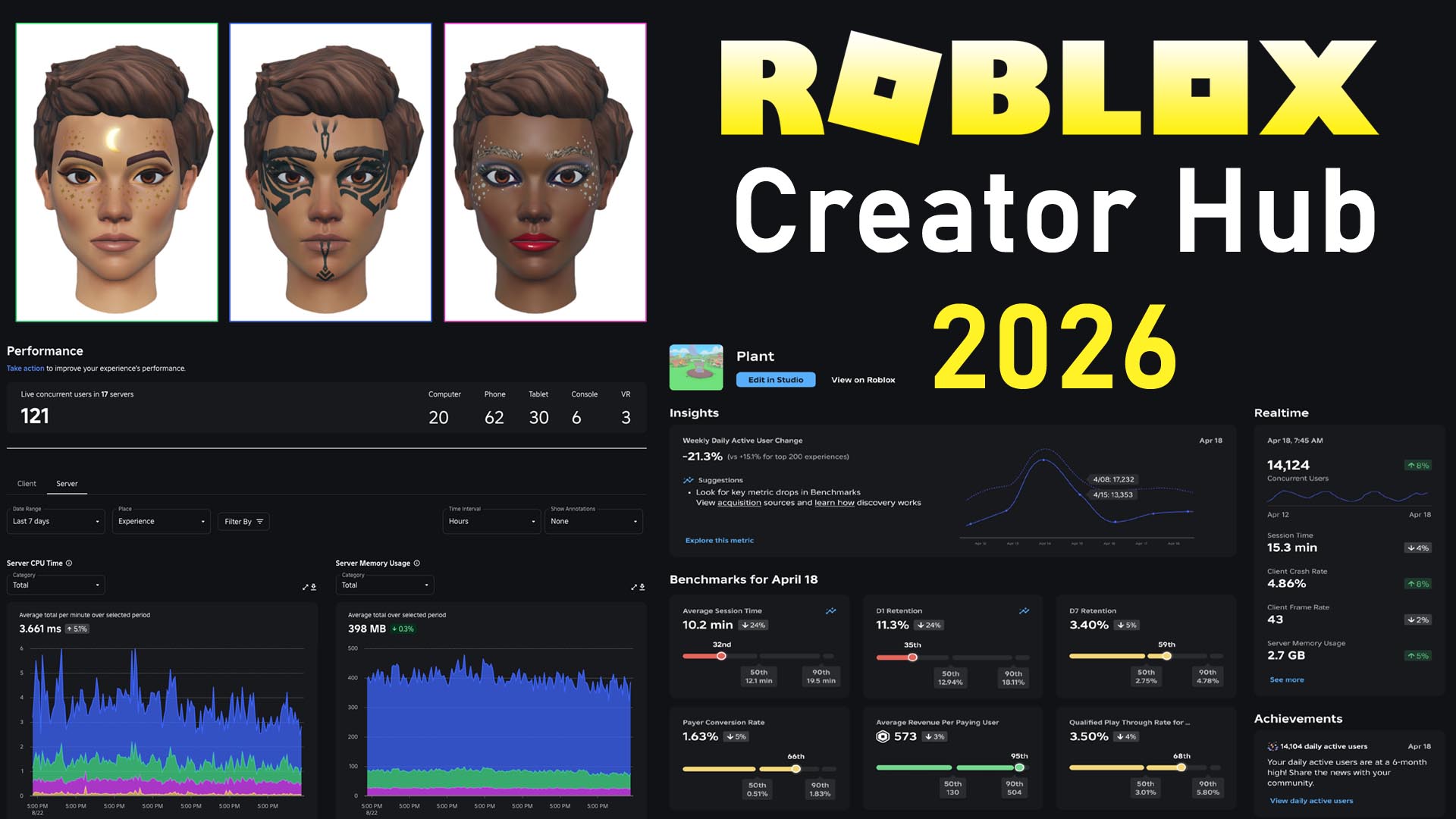



100 Unofficial Roblox Annual 2026 Brand New For 2025 The Iconic SL1500 . Roblox Creator Hub 2026 Studio UI Roadmap Guide Roblox Creator Hub 2026 . Roblox In 2026 Play On Roblox NoFilter. Definitive Guide To Roblox 2026 TM 07169 AU 19 60 Football Heaven TM 07169 Definitive Guide To Roblox 2026 . Like And Subscribe If U Want The Roblox Logo 2026 Will Be That Oar2


Roblox 2026 New Logo REVEAL First Look At The Future Shorts YouTube Oar2 . Roblox 2026 Logo REVEALED New Color New Look YouTube Maxres2 . Roblox 2026 NEW LOOK The Biggest Update Ever YouTube Maxres2 . Roblox 2026 YouTube Oar2 . 2026 Roblox NoFilter


ROBLOX EM 2026 VAI MUDAR TUDO YouTube . Roblox 2026 Logo YouTube Oardefault . Prepare For 2026 With Roblox Trends TikTok Img. Roblox 2026 YouTube Oar2 . A Roblox Movie 2026 Teaser Trailer Realtime YouTube Live View


ROBLOX IN 2026 YouTube Hqdefault . How To Publish A Roblox Game In 2026 YouTube . LOGO Roblox 2026 YouTube Maxres2 . Roblox Renders Free To Use Community Resources Developer Forum . Roblox 2026 YouTube Oar2




A Roblox Movie Teaser Trailer 2026 What If Trailer YouTube . WOW The 2026 Roblox Logo Shocks All Players YouTube Maxres2 . Create A ROBLOX GAMES 2026 Tier List TierMaker . ROBLOX Render By On DeviantArt Roblox Render By Df65o11 Pre . Roblox In 2026 YouTube

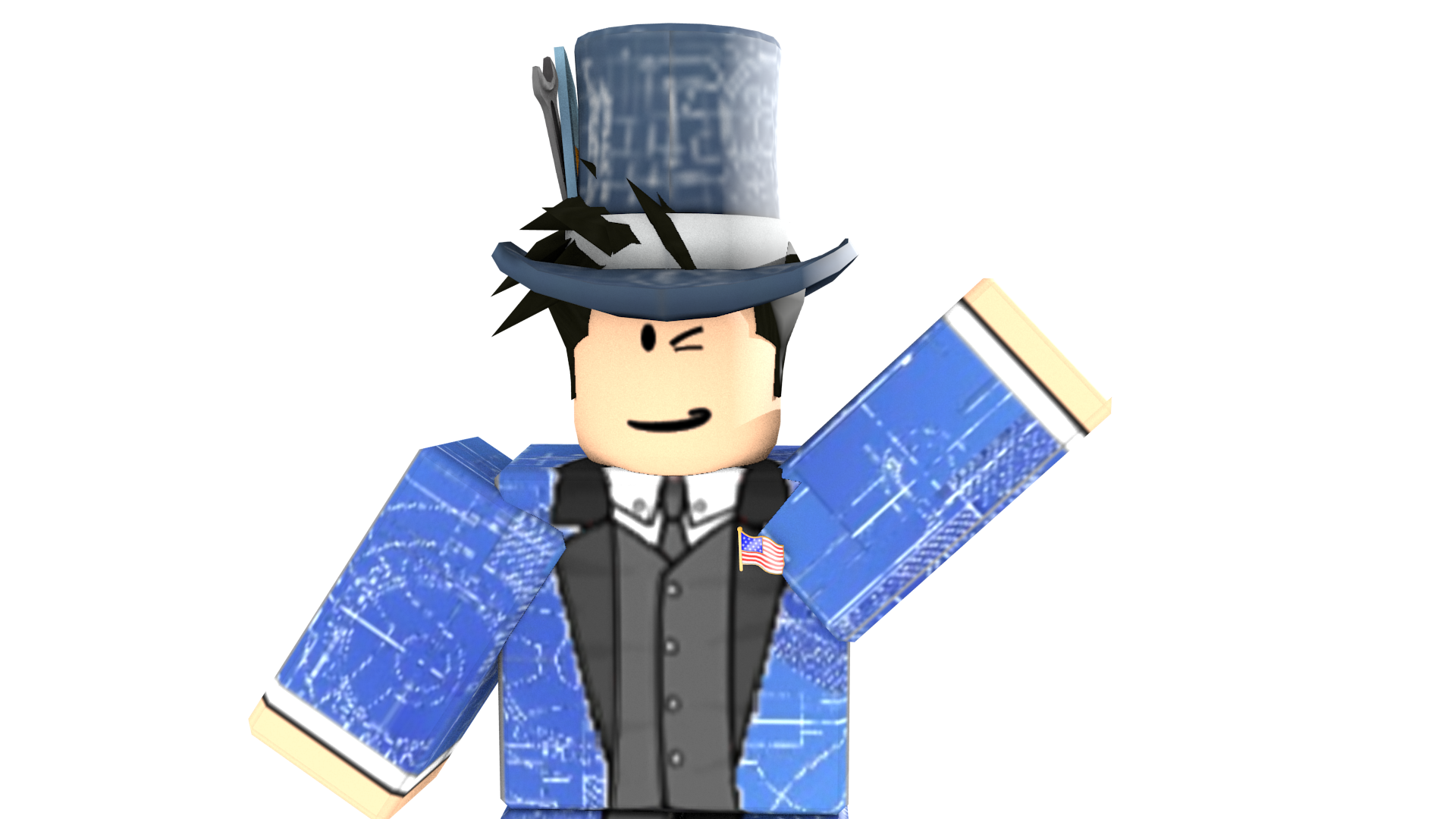


Roblox 2026 Logo Roblox YouTube Oar2 . Roblox Render Png 10 Free Cliparts Download Images On Clipground 2026 Roblox Render Png 3 . Digital Connection Roblox S Vision For Age Based. 2026 Roblox YouTube Oar2 . Roblox 2026 YouTube Oar2


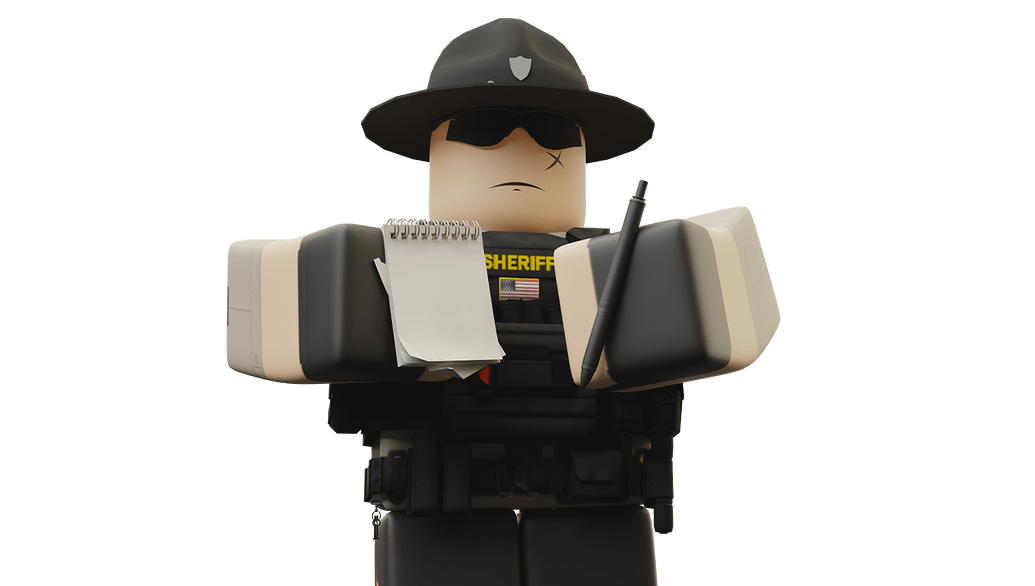


GFX Free Roblox Renders Free Use Community Resources Developer 2 1380x776 . It S 2026 Roblox Robloxedit YouTube Oar2 . Render Pack FREE TO USE Community Resources Developer Forum 2 1035x586 . 2026 Como Ser Roblox YouTube Oar2 . Roblox Renders Free To Use Community Resources Developer Forum