Embark on an exciting journey into the thriving world of PC gaming with Steam on Linux in 2026. This comprehensive guide covers everything from initial setup to advanced performance tweaks and troubleshooting common issues. Discover how Linux, once a niche platform, has transformed into a formidable gaming contender, thanks to Valve's Proton compatibility layer and the powerful Steam Deck. Learn to optimize your system, boost your FPS, conquer stuttering, and eliminate lag across various game genres including FPS, MOBA, RPG, and Battle Royale titles. We will delve into driver management, settings optimization, and leveraging community knowledge to ensure a seamless and enjoyable gaming experience. Prepare to unlock your Linux PC's full gaming potential and explore a vast library of titles previously thought exclusive to Windows.
Welcome to the ultimate 'Games Steam Linux FAQ 2026' guide, your one-stop resource for conquering the ever-evolving world of Linux gaming! We've meticulously compiled and updated this living FAQ to address over 50 of the most pressing questions, tips, tricks, and potential bugs you might encounter. From initial setup and optimization strategies to deep dives into specific game genres, driver fixes, and even a glimpse into the future of Linux gaming, we've got you covered. Whether you're a beginner just starting your journey or a seasoned veteran looking for advanced tweaks, this guide is designed to empower you. Dive in and discover how to unlock the full potential of your Steam library on Linux, ensuring a smooth, bug-free, and exhilarating gaming experience. Get ready to game like never before!
Is gaming on Linux viable in 2026?
Yes, gaming on Linux in 2026 is incredibly viable and more robust than ever before. Thanks to Valve's Proton compatibility layer and the success of the Steam Deck, a vast majority of Windows-native games now run seamlessly, often with comparable performance. Driver support has also significantly improved.
How do I improve FPS in Steam games on Linux?
To improve FPS, ensure your graphics drivers are up to date, close unnecessary background applications, use 'gamemode' to optimize system resources, and adjust in-game settings to lower demanding visual options. Experimenting with different Proton versions can also help.
What is Proton and how does it work for Steam games on Linux?
Proton is a compatibility layer developed by Valve, built on Wine, that translates Windows DirectX API calls into Vulkan for Linux. This allows Windows-exclusive games to run on Linux without native ports, seamlessly integrating with the Steam client to launch games directly.
How to fix stuttering and lag in Linux Steam games?
Fix stuttering by ensuring adequate VRAM/RAM, updating drivers, and disabling desktop compositors during gameplay. Reduce lag by using a wired internet connection, closing bandwidth-heavy applications, and ensuring your kernel and drivers are optimized for low latency.
What are the best Linux distributions for gaming in 2026?
In 2026, popular gaming-friendly Linux distributions include Pop!_OS for its excellent NVIDIA driver support, Garuda Linux for its performance optimizations, and Manjaro/Arch Linux for their up-to-date packages. These distros offer a great balance of stability and access to the latest gaming software.
Can I play competitive online games with anti-cheat on Linux?
Yes, many competitive online games with anti-cheat (like Easy Anti-Cheat or BattlEye) now support Proton on Linux. Game developers must explicitly enable this compatibility. Always check ProtonDB or official game announcements for specific title support to avoid issues or bans.
Are there any major compatibility issues with new AAA games on Linux?
While most new AAA games work well, some can still pose compatibility challenges, often due to aggressive anti-cheat systems not enabled for Proton, or very new DRM implementations. ProtonDB is the best resource for checking real-world compatibility and potential workarounds for specific titles.
Beginner Questions
How do I install Steam on my Linux system?
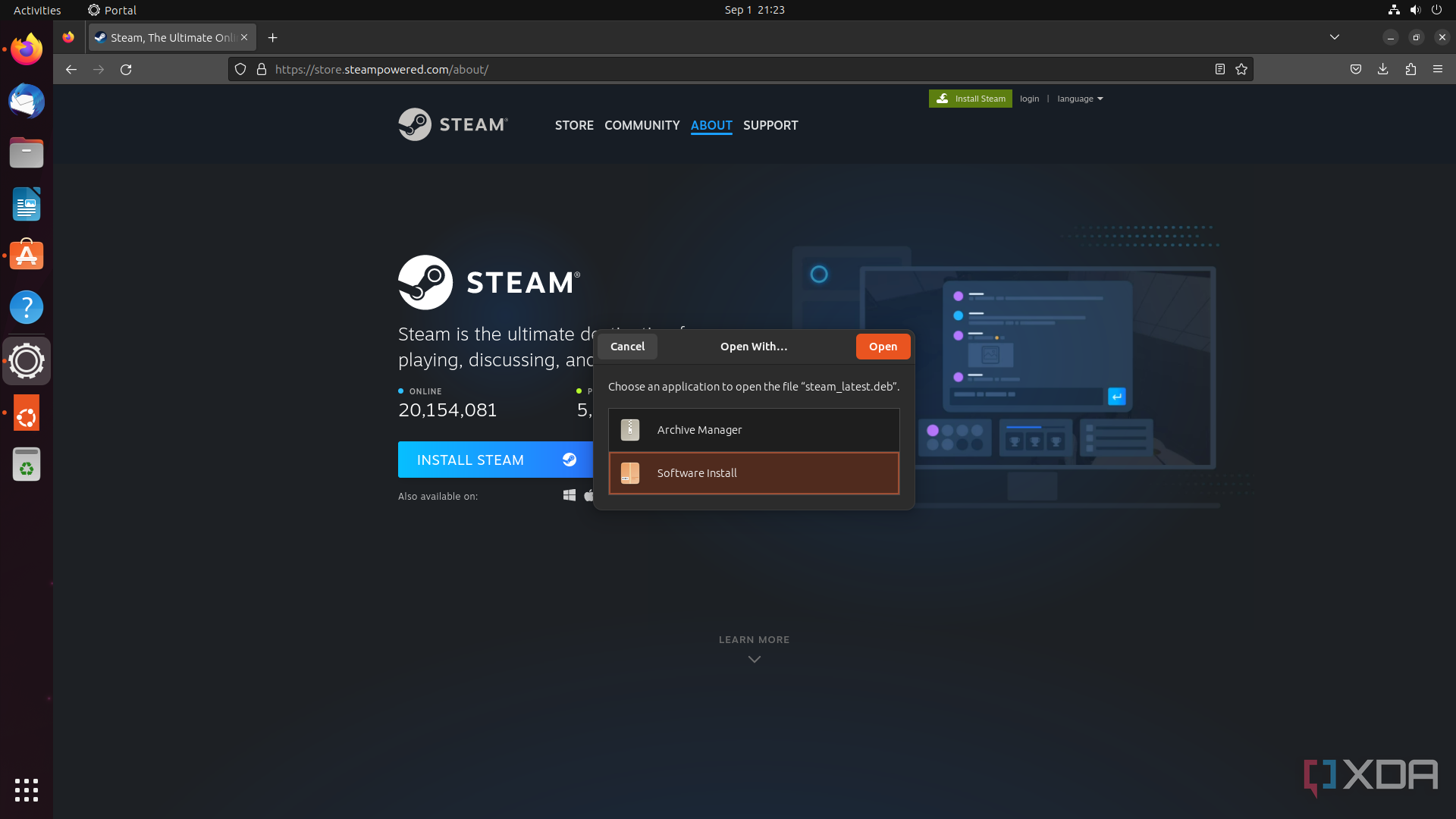
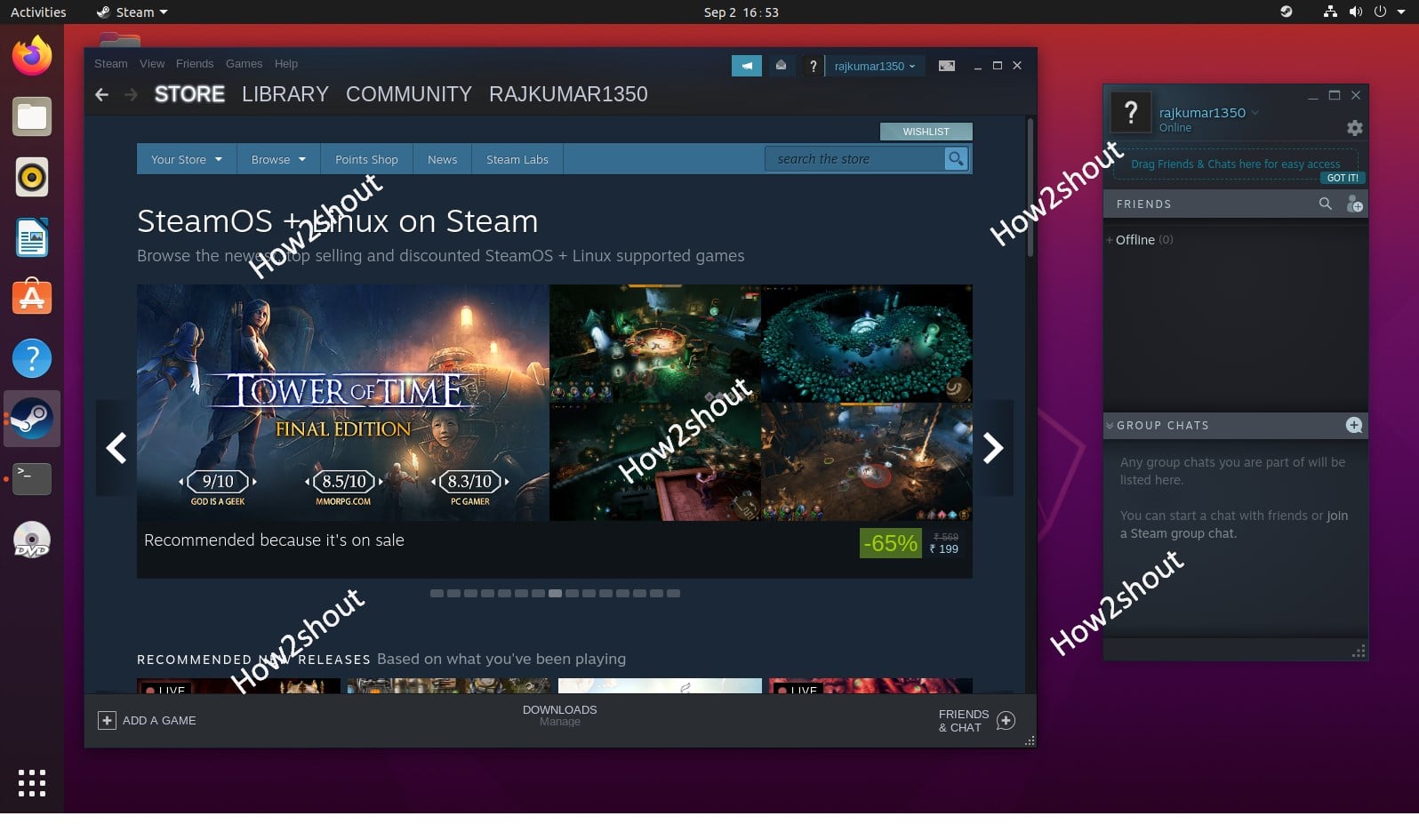
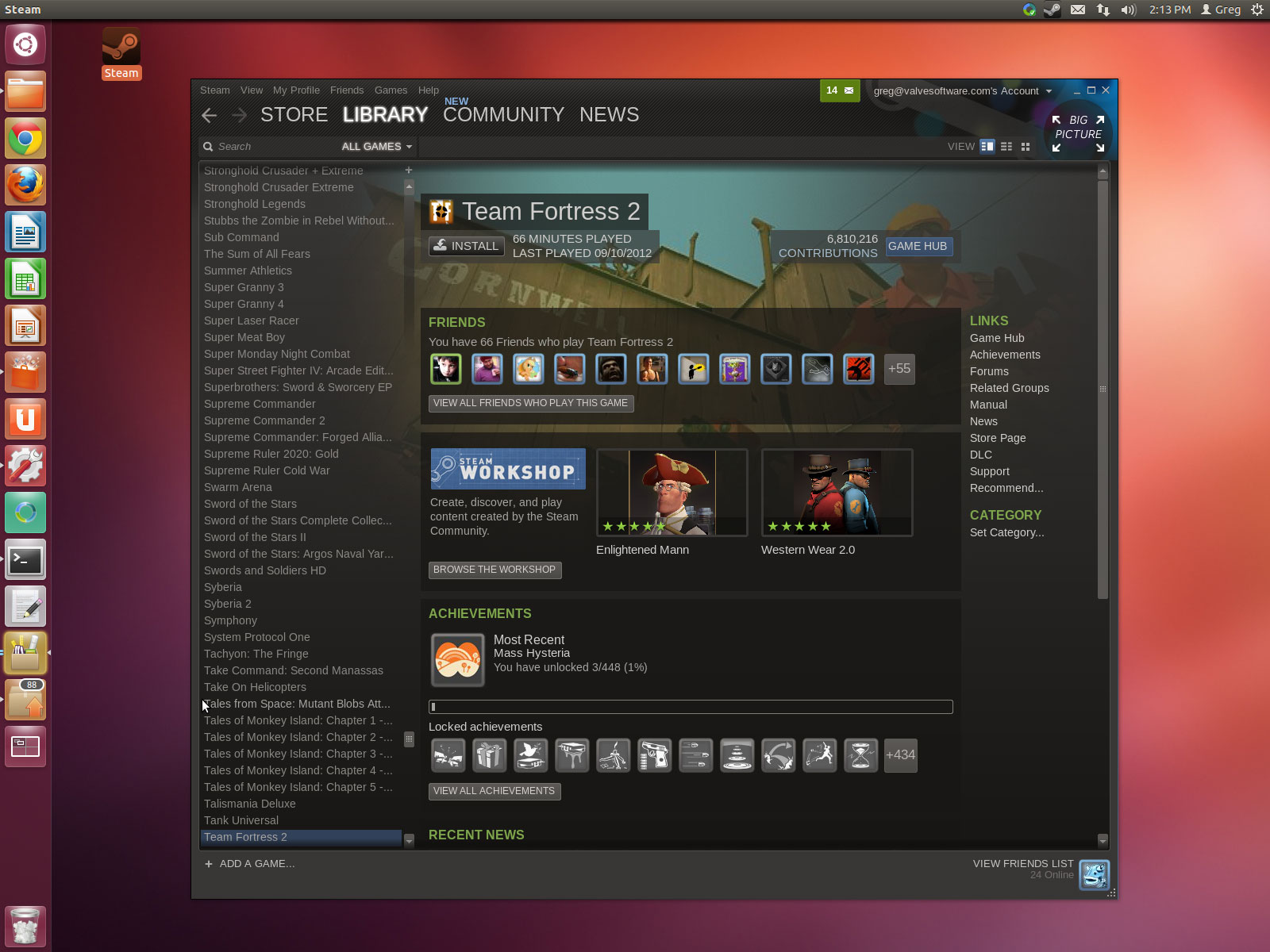
Installing Steam on Linux is typically very easy. Most distributions include Steam in their official package repositories, allowing for installation through your system's software center or a simple command like 'sudo apt install steam' for Debian/Ubuntu-based systems. Once installed, log in with your Steam account to access your library. This method ensures all necessary dependencies are handled automatically.
What kind of hardware do I need for Linux gaming?
Your hardware needs for Linux gaming are largely similar to Windows gaming. A modern CPU (Intel i5/Ryzen 5 or better), a dedicated GPU (AMD RX series or NVIDIA RTX series), and at least 16GB of RAM are recommended for optimal performance. SSD storage is also highly advised for faster load times. Ensure your hardware has good Linux driver support for the best experience.
Where can I find games that are officially supported on Linux?
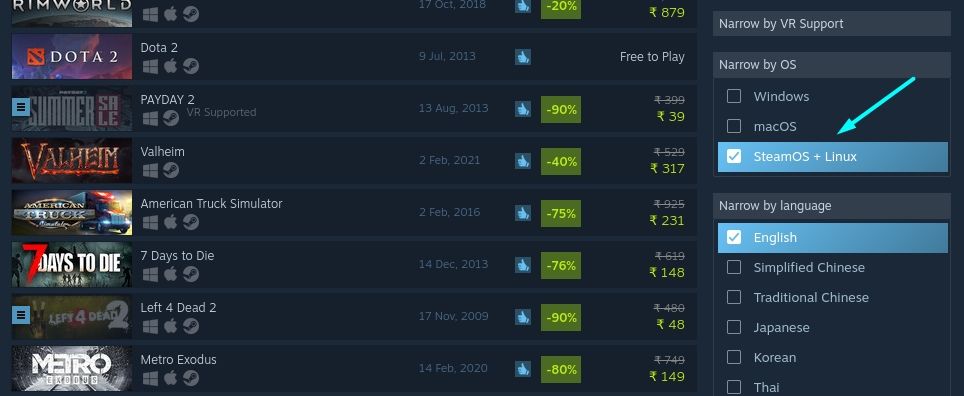
You can find officially supported Linux games directly within the Steam client by filtering your library for 'Linux' under the 'Platform' section. Additionally, websites like ProtonDB.com list community reports on how well Windows-only games run via Proton. Look for native Linux ports for guaranteed direct support and often better initial performance.
Do I need to learn command-line to game on Linux?
While knowing some basic command-line commands can be helpful for troubleshooting or advanced tweaks, it's generally not a strict requirement for everyday Linux gaming. Modern distributions and the Steam client make most processes graphical and user-friendly. However, a little command-line knowledge can speed up driver updates or specific game fixes.
Performance Optimization
How do I optimize my graphical settings for FPS on Linux?
To optimize graphical settings for FPS on Linux, start by lowering demanding options such as shadow quality, anti-aliasing, and global illumination. Experiment with resolution scaling if your GPU struggles at native resolution. Also, consider disabling or reducing post-processing effects like motion blur and depth of field, as these can consume significant resources.
What is 'gamemode' and how can it boost my gaming performance?
'Gamemode' is an open-source daemon for Linux that automatically optimizes your system for gaming when a game is launched. It sets the CPU governor to 'performance,' boosts GPU clocks, and adjusts I/O scheduling to prioritize game processes. Installing it and ensuring your games launch with it can provide a noticeable FPS boost.
Should I use Wayland or X11 for gaming performance on Linux?
In 2026, Wayland is generally becoming the preferred choice for gaming, offering lower latency, reduced screen tearing, and better security compared to the older X11. However, some older games or specific GPU driver configurations might still perform better on X11. It's often worth testing both display servers to see which provides the best experience for your setup.
How do I monitor my FPS and system resources while gaming on Linux?
You can effectively monitor your FPS and system resources on Linux using tools like MangoHud. This open-source overlay displays real-time information such as FPS, CPU/GPU usage, temperatures, and VRAM consumption. Simply prefix your Steam game launch options with 'MANGOHUD=1 %command%' to activate it for any game.
Compatibility & Proton
What is Proton-GE and when should I use it?
Proton-GE (GloriousEggroll's Proton) is a community-maintained custom version of Proton that often includes newer fixes, multimedia codecs (like for video cutscenes), and bleeding-edge Wine updates before they reach official Steam Proton. You should use Proton-GE when official Proton versions cause issues with specific games, especially for video playback or very new titles.
How do I select a different Proton version for a specific game?
To select a different Proton version, right-click on the game in your Steam library, go to 'Properties,' then 'Compatibility.' Check the box for 'Force the use of a specific Steam Play compatibility tool' and choose your desired Proton version from the dropdown menu. This allows for game-specific optimization and troubleshooting.
Can I run games that have non-Steam launchers on Linux?
Yes, you can often run games with non-Steam launchers (like Epic Games, GOG, or Battle.net) on Linux using Lutris, Heroic Games Launcher, or by adding the launcher as a non-Steam game in Steam and forcing Proton compatibility. These tools simplify the process of installing and managing games from various stores, greatly expanding your Linux game library.
Myth vs. Reality: Proton makes games run slower than on Windows.
Myth: Proton always makes games run slower. Reality: While Proton introduces some overhead, many games run with comparable performance to Windows, sometimes even slightly better due to Linux's lighter OS. Modern Proton versions and Vulkan's efficiency minimize performance impact significantly, making the difference often negligible or even favorable.
Troubleshooting Common Issues
How do I fix common crashing issues with Steam games on Linux?
Common crashing issues can often be resolved by updating your graphics drivers, verifying game file integrity in Steam, trying different Proton versions (especially Proton-GE), and ensuring your system has sufficient RAM. Checking ProtonDB for game-specific fixes or known issues can also provide solutions, as crashes are often game-dependent.
My game has no sound or corrupted audio; what should I check?
If your game has no sound or corrupted audio, first ensure your system's audio output is correctly configured and not muted. Check if a specific Proton version (like Proton-GE) is needed, as it often includes extra audio codecs. Restarting PulseAudio or PipeWire services can sometimes resolve temporary audio glitches. Verify in-game audio settings too.
Why are my save files not working or disappearing on Linux?
Save file issues can stem from incorrect permissions, cloud save synchronization conflicts, or specific game-related bugs. Ensure the game's Proton prefix has proper write access. Disable Steam Cloud Saves temporarily to test if it's causing conflicts. Check ProtonDB for known save file issues for your specific game and potential workarounds or locations.
Myth vs. Reality: All Windows games eventually run perfectly on Linux.
Myth: All Windows games will eventually run perfectly on Linux. Reality: While compatibility is excellent, some games, especially those with aggressive, non-Proton-enabled anti-cheat or very niche hardware dependencies, may never run perfectly or at all. The goal is broad compatibility, not absolute universal perfection. Progress is continuous but not guaranteed for every single title.
Specific Game Genres
Are FPS games like Call of Duty or Apex Legends playable on Linux?
Many popular FPS games, including titles similar to Apex Legends, are indeed playable on Linux, often with excellent performance. Call of Duty historically has had stricter anti-cheat measures that prevent Linux play. However, compatibility is highly dependent on the game developer enabling Proton support for their anti-cheat system. Always check ProtonDB for current status.
What about MOBA games like League of Legends or Dota 2 on Linux?
Dota 2 has a native Linux client and runs flawlessly, making it a prime MOBA choice. League of Legends does not have native Linux support, but can be played via Lutris or Heroic Games Launcher using Wine/Proton, though it might require more manual setup and could be prone to breakages with updates. Community efforts continually improve compatibility.
How well do RPGs and Strategy games perform on Linux?
RPGs and Strategy games generally perform very well on Linux, often among the best-supported genres. Many have native Linux ports (e.g., Divinity: Original Sin II, Stellaris) or achieve Platinum/Gold ratings on ProtonDB with minimal issues. Their typically less demanding real-time input requirements also mean smoother experiences, even with some Proton overhead.
Myth vs. Reality: Linux is only good for indie games, not AAA titles.
Myth: Linux is only suitable for indie games. Reality: This is outdated. While Linux has a fantastic indie scene, many modern AAA titles run exceptionally well via Proton, thanks to Valve's ongoing development and improved driver support. Games like Cyberpunk 2077, Baldur's Gate 3, and Elden Ring are perfectly playable on Linux, often with great performance.
Drivers & Hardware
How do I update my NVIDIA graphics drivers on Linux?
For NVIDIA graphics drivers, the most reliable method is often to use your distribution's built-in driver manager, which can install the proprietary drivers. Alternatively, you can download drivers directly from NVIDIA's website. Ensure you select the correct driver for your GPU and kernel version. Always reboot after installation for changes to take effect.
What's the best way to manage AMD and Intel drivers on Linux?
AMD and Intel graphics drivers on Linux are primarily open-source (Mesa drivers) and are typically updated through your distribution's regular system updates. Keeping your kernel and Mesa packages up to date ensures you have the latest performance enhancements and bug fixes. No separate manual installation is usually required for these GPU types, which simplifies management.
Can I use my gaming mouse and keyboard with custom settings on Linux?
Yes, you can use most gaming mice and keyboards on Linux, often with custom settings. Basic functionality is usually plug-and-play. For advanced features like custom keybinds, macros, or RGB lighting, open-source tools like Piper (for Logitech) or OpenRGB (for general RGB control) are available. Some manufacturers also offer Linux-compatible software or firmwares.
Myth vs. Reality: Linux gaming requires specific, obscure hardware.
Myth: Linux gaming demands specific, obscure hardware. Reality: Modern Linux gaming runs best on standard, widely available PC hardware, especially systems with AMD or NVIDIA GPUs. You don't need any 'Linux-specific' components. In fact, the broad hardware compatibility of Linux means most common gaming setups work out-of-the-box or with minimal setup.
Multiplayer & Anti-Cheat
How can I ensure my microphone works in multiplayer games on Linux?
To ensure your microphone works, first verify it's detected and configured correctly in your system's audio settings (PulseAudio or PipeWire). In-game, select the correct input device. Some games might require specific Proton launch options or a Proton-GE version for proper audio input. Ensure no other applications are hogging the microphone. Regular testing is key.
What should I do if my multiplayer game is consistently disconnecting?
Consistent disconnections in multiplayer games on Linux often point to network instability, server-side issues, or occasionally anti-cheat conflicts. Use a wired Ethernet connection instead of Wi-Fi for stability. Disable VPNs or firewalls temporarily to test. Check game forums for reported server issues. Sometimes, a specific Proton version or launch option might resolve connectivity problems.
Myth vs. Reality: All anti-cheat systems block Linux gamers.
Myth: All anti-cheat systems block Linux gamers. Reality: This is false. While some anti-cheat systems still pose a barrier, many, including major ones like EAC and BattlEye, have enabled compatibility for Proton on Linux. The trend is towards greater support, driven by the Steam Deck's success, but it's still up to individual game developers to activate it.
Endgame Grind
How can I optimize my system for competitive gaming on Linux?
For competitive gaming, prioritize low latency and high, stable FPS. Use a gaming-focused distro, ensure the latest drivers, and configure your CPU governor to 'performance.' Minimize background processes, use Wayland for lower input lag, and consider a lower-latency kernel. Fine-tune in-game settings for maximum FPS over graphical fidelity. Every millisecond counts!
Bugs & Fixes
What do I do if a game refuses to launch on Steam Linux?
If a game refuses to launch, first verify the integrity of game files via Steam. Then, try forcing different Proton versions, starting with Proton Experimental and then Proton-GE. Check ProtonDB for specific launch options or known fixes for that game. Ensure your drivers are updated. Sometimes, deleting the game's Proton prefix and letting Steam recreate it can resolve stubborn launch issues.
Community & Resources
Where can I get help and support for Linux gaming issues?
Excellent resources for Linux gaming support include ProtonDB.com for game-specific compatibility reports, the Linux_Gaming subreddit, and official forums for your Linux distribution (e.g., Ubuntu Forums, Arch Linux Wiki). Discord servers for Linux gaming communities are also very active. Don't hesitate to ask for help; the community is incredibly supportive!
Future of Linux Gaming
What innovations can we expect in Linux gaming by 2026 and beyond?
By 2026 and beyond, expect continued advancements in Wayland support for even lower latency and smoother visuals, further optimizations within Proton for broader compatibility and performance, and increased native game development targeting Vulkan. More sophisticated anti-cheat solutions with native Linux support are also on the horizon, expanding competitive multiplayer options. The influence of the Steam Deck will continue to drive these innovations.
Myth vs. Reality: Linux gaming is just a passing fad due to the Steam Deck.
Myth: Linux gaming is a passing fad. Reality: This is incorrect. While the Steam Deck undeniably boosted its profile, Linux gaming has a long history and is a steadily growing ecosystem. The Deck cemented Linux's place, driving long-term investment from Valve and increasing developer interest, ensuring its continued expansion and innovation far beyond a temporary trend.
Still have questions? Check out our in-depth guides on 'Linux Driver Management for Gamers' or 'Advanced Proton Tweaks for Max FPS!'
Are Steam games truly playable on Linux in 2026, and how can gamers achieve optimal performance? The answer is a resounding yes, and it is more accessible than ever before. The gaming landscape on Linux has undergone a revolutionary transformation. This evolution is largely thanks to Valve's incredible dedication with their Proton compatibility layer. Moreover, the immense popularity of the Steam Deck has significantly pushed Linux gaming into the mainstream. Gone are the days of limited game choices and frustrating workarounds for dedicated Linux users. Now, a vast library of titles, from the latest AAA blockbusters to beloved indie gems, runs remarkably well. You can conquer opponents in demanding FPS titles, strategize in complex MOBAs, or immerse yourself in expansive RPGs. This comprehensive guide will illuminate the path to a smooth and enjoyable Steam gaming experience on your Linux machine, covering essential tips and advanced strategies.
The Linux Gaming Revolution: A 2026 Perspective
The year 2026 marks a pivotal moment for Linux in the gaming world. Valve's continuous development of Proton has refined compatibility to an impressive degree. This powerful tool allows Windows-native games to run seamlessly on Linux. Many titles now perform almost identically to their Windows counterparts. The success of the Steam Deck has spurred further development and investment. Developers are increasingly considering Linux compatibility during their game's design phase. This shift means less reliance on community fixes and more official support. Furthermore, driver support from GPU manufacturers like NVIDIA and AMD has vastly improved. These advancements ensure better performance and fewer graphical glitches. This growing ecosystem truly positions Linux as a viable and exciting gaming platform.
Optimizing Your Setup for Peak Performance
Achieving top-tier gaming performance on Linux involves a few key optimization steps. Proper driver installation is absolutely paramount for any serious gamer. Always ensure you are running the latest stable graphics drivers for your specific GPU. For NVIDIA users, this often means installing proprietary drivers directly from their website or via your distribution's repositories. AMD users typically benefit from the open-source Mesa drivers, which are consistently updated. Keeping your Linux kernel up to date can also yield performance benefits. Newer kernels often include critical improvements for hardware support and scheduling. Additionally, adjusting in-game settings is crucial, similar to gaming on Windows. Start with recommended settings and then fine-tune for your specific hardware. Lowering demanding options like shadows and anti-aliasing can significantly boost your FPS. Remember to monitor your system resources during gameplay to identify bottlenecks.
Troubleshooting Common Issues: FPS Drops, Stuttering, and Lag
Even with excellent compatibility, you might occasionally encounter performance hiccups like FPS drops, stuttering, or network lag. Identifying the root cause is the first step towards a fix. FPS drops often stem from outdated drivers or an overheating CPU/GPU. Ensure your cooling system is efficient and clear of dust. Stuttering, on the other hand, can sometimes be related to shader compilation or VRAM limitations. Using tools like 'gamemode' can help prioritize game processes. This utility optimizes your system for gaming performance. Network lag, while not Linux-specific, can be mitigated by ensuring a stable internet connection. Try using a wired Ethernet connection over Wi-Fi when possible. Also, close any bandwidth-intensive applications running in the background. Regularly checking community forums can provide specific game fixes. ProtonDB is an excellent resource for game-specific reports and tweaks. The Linux gaming community is incredibly supportive and often has solutions. Collaborating with other players can quickly resolve many complex issues.
Beginner / Core Concepts
Navigating the world of Steam gaming on Linux can feel like a new adventure, but it's remarkably accessible. These questions tackle the foundational elements everyone should know to get started.
1. Q: What exactly is Steam Proton, and why is it so important for Linux gamers?
A: Steam Proton is essentially a compatibility layer developed by Valve that allows Windows-native games to run on Linux. I get why this confuses so many people; it's not an emulator, which often implies performance loss. Instead, Proton cleverly translates Windows API calls into Linux-compatible ones, often with surprisingly good results. Think of it as a universal translator for your games, enabling them to speak Linux fluently. It’s built upon Wine, but with a ton of Valve-specific improvements and integrations directly into Steam. Without Proton, your Linux machine wouldn't be able to run most commercial games designed for Windows, making it an absolute game-changer for the entire Linux gaming ecosystem. It’s what makes the Steam Deck possible, and honestly, it’s what transformed Linux from a niche gaming platform into a truly viable one. It's constantly being updated, so you'll often see performance and compatibility improvements with new Proton versions. You've got this, understanding Proton is key!
2. Q: How do I get Steam installed on my Linux distribution, and is it a complicated process?
A: Installing Steam on most modern Linux distributions is refreshingly straightforward; it’s usually not complicated at all. This one used to trip me up too, back in the day, but distributions have come a long way. You’ll typically find Steam in your distribution’s software center or package manager, making installation as simple as a few clicks or a single command line entry. For example, on Ubuntu/Debian-based systems, you'd usually run `sudo apt install steam`. On Fedora, it might be `sudo dnf install steam`. Once installed, you simply launch it, log in with your Steam account, and you're ready to start downloading games. The Steam client itself functions almost identically to its Windows counterpart, so you’ll feel right at home with your library and friends list. Don't overthink it; the hardest part is waiting for your games to download! Try this tomorrow and let me know how it goes.
3. Q: What are some good beginner-friendly games that run well on Steam for Linux right out of the box?
A: You're looking for an easy entry point, and that's smart! For beginner-friendly games that run excellently on Steam for Linux, start with titles that have native Linux ports or are known to work flawlessly with Proton. Many popular indie games, like Stardew Valley or Terraria, have native Linux versions and are perfect for getting your feet wet. For Proton-compatible options, Valve’s own titles such as Portal 2 or Half-Life 2 are almost always flawless. Many older AAA titles also have fantastic Proton compatibility, often running better than you'd expect. A great resource is ProtonDB.com, where you can check game compatibility reported by other Linux gamers. Look for titles with 'Platinum' or 'Gold' ratings. This means they run perfectly or with minor tweaks. Don't be afraid to experiment, but starting with known winners builds confidence. You’ve got a huge library waiting!
4. Q: How do I make sure my graphics drivers are up to date on Linux for better game performance?
A: Keeping your graphics drivers current is absolutely crucial for optimal gaming performance, just like on Windows. I get why this can seem a bit daunting on Linux with its varied approaches. For NVIDIA users, the easiest and most recommended path is usually through your distribution's proprietary driver manager or by downloading directly from NVIDIA's website. AMD and Intel users generally rely on the open-source Mesa drivers, which are usually updated through your system’s regular software updates. It’s vital to use the latest stable versions; bleeding-edge drivers can sometimes introduce instability. Always check your distribution's documentation for the recommended update procedure. A simple `sudo apt update && sudo apt upgrade` on Debian/Ubuntu or `sudo dnf update` on Fedora often brings you the latest Mesa drivers. This ensures you’re getting all the performance and bug fixes the developers have packed in. Staying updated really makes a difference. You've got this, a smooth gaming experience is just a driver update away!
Intermediate / Practical & Production
Now that you've got the basics down, let's dive into practical tips and common challenges you might face while gaming on Linux. These questions focus on real-world scenarios and how to tackle them.
1. Q: My FPS keeps dropping in games; what are the most common causes and fixes for this on Linux?
A: FPS drops are super frustrating, I totally get it, and honestly, they're often due to similar reasons on Linux as on Windows. The most common culprits are usually outdated graphics drivers, overheating hardware, or insufficient system resources. Start by verifying your graphics drivers are the latest stable version—I know, we talked about it, but it’s *that* important. Next, monitor your CPU and GPU temperatures; excessive heat will cause thermal throttling, reducing performance. Tools like `htop` or graphical system monitors can help. Another big one is ensuring your system isn’t overloaded with background processes. Close unnecessary apps, browser tabs, and widgets. Also, try tweaking in-game graphics settings, especially shadow quality and post-processing effects, as these are often major FPS hogs. Sometimes, specific Proton versions work better for certain games, so experimenting with Proton-GE or older stable Proton versions via Steam's compatibility settings can work wonders. Remember, optimization is a journey, not a destination! You'll get there.
2. Q: How do I deal with anti-cheat systems preventing me from playing online multiplayer games on Linux?
A: Ah, anti-cheat, the bane of many Linux gamers! This one used to trip me up too, and it's definitely a common pain point. The good news is that many anti-cheat solutions, like Easy Anti-Cheat (EAC) and BattlEye, now offer Linux compatibility specifically for Proton. However, game developers need to actively enable it for their titles. If a game supports Proton with its anti-cheat enabled, it generally just works! You'll see this noted on ProtonDB or in official announcements. If a game’s anti-cheat *isn't* enabled for Proton, unfortunately, there isn't a reliable workaround. Trying to bypass anti-cheat can lead to bans, so it’s best to avoid it. Your best bet is to check ProtonDB for the specific game and its anti-cheat status. If it's not working, gently (and politely!) pester the game developers on their forums or social media to enable Proton support for their anti-cheat. The more voices they hear, the better. Patience is key here, but progress is being made!
3. Q: What are the best ways to optimize in-game settings and Proton versions for maximum performance on Linux?
A: Optimizing for performance on Linux is a blend of familiar tactics and Linux-specific tweaks. Firstly, regarding in-game settings, it's just like Windows: start with lower settings for demanding options like shadows, anti-aliasing, and global illumination. Gradually increase them until you hit your desired FPS target. For Proton versions, don't just stick to the default! In Steam, right-click a game, go to Properties, then Compatibility, and enable 'Force the use of a specific Steam Play compatibility tool.' This lets you select different Proton versions, including Proton Experimental or community-maintained Proton-GE. Proton-GE often includes bleeding-edge fixes and codecs that aren't in official Proton yet. Check ProtonDB for what works best for *your* specific game. Additionally, consider using `gamemode`, a FOSS tool that optimizes your system when gaming by adjusting CPU governors and I/O scheduling. It’s usually available in your distro’s repos. Little optimizations add up! You’ve got this!
4. Q: Are certain Linux distributions better for gaming than others? Which ones should I consider?
A: That's a fantastic question, and yes, some Linux distributions definitely have an edge when it comes to gaming. While most modern distros can handle gaming, distributions that prioritize up-to-date kernels, graphic drivers, and gaming-specific optimizations tend to perform better. Pop!_OS by System76 is often cited as a top contender, especially for NVIDIA users, because it provides an ISO with NVIDIA drivers pre-installed and has excellent out-of-the-box support. Garuda Linux, with its focus on performance and gaming-centric tools like an optimized kernel and gaming profiles, is another strong choice, though it's more for intermediate to advanced users. Arch Linux and its derivatives (like Manjaro) are popular because they offer very fresh packages, including the latest drivers and Proton versions, giving you a performance edge. Ultimately, consistency with driver updates and a robust package manager are key. Don't feel pressured to switch if your current distro works well, but if you're looking for an upgrade, these are solid considerations. Try a live USB to see what feels right for you!
5. Q: I'm experiencing screen tearing or stuttering in games; what are some Linux-specific fixes?
A: Screen tearing and stuttering are super annoying, I know! They used to plague me on my first Linux gaming setup. On Linux, these issues often stem from compositor interactions or VSync settings. If you’re using a desktop environment with a compositor (like GNOME or KDE Plasma), try disabling it during gaming or setting it to a “full screen unredirect” mode. This can prevent the compositor from interfering with your game’s frames. Ensure VSync is correctly configured – either enabled in-game or via your graphics driver settings, but not both conflicting. For NVIDIA users, enabling “Force Composition Pipeline” or “Force Full Composition Pipeline” in the NVIDIA X Server Settings can often resolve tearing. AMD users with Mesa drivers might find success ensuring TearFree is enabled in their `xorg.conf.d` settings. Finally, for persistent stuttering, ensure your shader caches are being built correctly and that you have enough free RAM and VRAM. A bit of tweaking often solves these stubborn issues. You’ve definitely got this, don't let it discourage you!
6. Q: What's the deal with Proton-GE and why would I use it over the default Proton versions in Steam?
A: Proton-GE, or GloriousEggroll's Proton, is a fantastic community-maintained version of Proton, and it's often a lifesaver for Linux gamers. I get why this sounds a bit 'extra' when Steam already provides Proton. The main reason you’d use it is that it frequently includes newer patches, multimedia codecs (like VAAPI for video playback in some games), and other bleeding-edge fixes that haven't yet made it into Valve's official Proton releases. This means a game that might not run at all, or has audio/video issues with regular Proton, could work perfectly with Proton-GE. It also sometimes integrates newer Wine versions faster. Installing it is usually done via a tool like ProtonUp-Qt, which makes managing multiple Proton versions a breeze. It’s particularly useful for newer games or games with complex DRM. While official Proton is great, Proton-GE offers that extra layer of customization and cutting-edge support that advanced users often appreciate. It's a powerful tool in your Linux gaming arsenal! Give it a shot for those tricky games.
Advanced / Research & Frontier 2026
For those ready to push the boundaries, these advanced topics delve into the deeper technical aspects of Linux gaming. We’ll explore experimental features and nuanced optimizations for cutting-edge performance.
1. Q: How can I leverage kernel parameters or advanced Wine options for specific game performance boosts?
A: Alright, now we’re getting into the nitty-gritty, the stuff that separates the casual player from the true Linux gaming tinkerer! Leveraging kernel parameters and advanced Wine options can absolutely squeeze out extra performance, but it requires a bit more technical know-how. For kernel parameters, you might experiment with specific CPU governors (`powersave`, `performance`) or `iommu=pt` if you’re doing PCI passthrough. These are set in your bootloader config, like GRUB. Be careful here, as incorrect parameters can cause system instability. When it comes to Wine (which Proton is built upon), advanced options are often exposed through environment variables or custom Proton launch options. For instance, setting `DXVK_ASYNC=1` can sometimes reduce stuttering by compiling shaders asynchronously, though it's not universally beneficial and can even cause issues in some titles. You might also encounter `WINE_FULLSCREEN_FSR=1` for AMD FSR support in games that don't natively support it. Remember to always test one change at a time and document your modifications. This is where a deep understanding of your system and game engine comes into play. It’s like being a digital alchemist! You’re on the right track pushing these frontiers.
2. Q: What impact does Wayland have on Linux gaming in 2026 compared to X11, and should I switch?
A: This is a fantastic and very timely question, as Wayland is quickly maturing and becoming a significant player in the Linux desktop space. For years, X11 was the undisputed king, but it carries a lot of legacy baggage. Wayland, as a newer display server protocol, offers some compelling advantages for gaming in 2026: better security, smoother animations, and significantly reduced screen tearing out of the box, largely due to its direct rendering model. This means less input lag and a more responsive feel in many games. However, it's not a magic bullet yet. Some older games or specific tools (like those relying on X11 for screen capture or overlays) might still have issues or not work perfectly on Wayland. NVIDIA’s Wayland support has also improved dramatically. My general advice is: if your current X11 setup is working flawlessly and you're not experiencing issues, there's no *urgent* need to switch. But if you’re experiencing tearing, seeking lower latency, or just enjoy staying on the cutting edge, definitely give Wayland a try. Most modern distros offer a Wayland session option at login. Just be prepared for a potential hiccup or two with specific applications, but the future of Linux gaming definitely leans Wayland. You're exploring important territory here!
3. Q: How are GPU scheduling and resource management evolving on Linux for gaming, especially with newer models?
A: This is where the magic really happens at a lower level, and it's an area of intense development for Linux. GPU scheduling and resource management on Linux, especially with newer GPU models and architectures in 2026, are becoming incredibly sophisticated. We're seeing more intelligent kernel-level scheduling that aims to allocate GPU resources more efficiently, reducing latency and maximizing throughput. The development of direct state access (DSA) and explicit GPU synchronization mechanisms in the kernel and Mesa drivers are pivotal. This allows games to communicate more directly and efficiently with the GPU hardware, minimizing overhead. Furthermore, advancements in memory management, particularly around sharing memory between the CPU and GPU (think technologies akin to Resizable BAR on Windows), are making a huge difference. These improvements lead to better frame times, fewer stutters, and overall smoother gameplay, especially in VRAM-intensive titles. The continuous collaboration between kernel developers, Mesa contributors, and GPU vendors is truly pushing the envelope. It means that your shiny new 2026 GPU will likely perform even better on Linux than you might expect, sometimes even outperforming Windows in specific benchmarks due to Linux's leaner kernel. Keep an eye on those kernel and driver updates; they’re often packed with these kinds of optimizations! You're really digging into the core of it now.
4. Q: Can I effectively benchmark my Linux gaming performance, and what tools should I use for accurate results?
A: Absolutely, benchmarking your Linux gaming setup is not only possible but highly recommended for fine-tuning and comparing performance! It’s essential for understanding the impact of your tweaks. This one used to be a bit trickier, but dedicated tools have emerged. For in-game FPS monitoring and basic benchmarking, `MangoHud` is your best friend. It's an excellent open-source overlay that displays FPS, CPU/GPU usage, temperatures, and more, and it can log data for post-analysis. You launch it by prefixing your Steam game with `MANGOHUD=1 %command%`. For more synthetic benchmarks, familiar tools like `Unigine Heaven` or `Superposition` have Linux versions, giving you consistent, repeatable scores. For disk I/O, `fio` can be useful. The key to accurate benchmarking is consistency: run tests multiple times, average the results, and ensure your system is in a consistent state (no background tasks, same in-game settings). Proton's overhead can sometimes vary, so test with and without it for native Linux games. Comparing your results to others on similar hardware can offer great insights into potential bottlenecks. It's a fun way to really understand your rig! Keep pushing those numbers!
5. Q: What are the future trends for Linux gaming that I should be aware of in the next few years (beyond 2026)?
A: Looking beyond 2026, the future of Linux gaming is incredibly bright and evolving rapidly! We're talking about some exciting frontier developments that will make gaming even more seamless and performant. One major trend is the continued maturation of Wayland; as it becomes the default for more distributions, its performance and feature parity with X11 will only improve, leading to even lower latency and fewer graphical glitches. We’ll also see deeper integration and optimization for advanced rendering APIs like Vulkan, which is already a cornerstone for Proton. Expect more games to target Vulkan directly, potentially reducing the overhead of DirectX to Vulkan translation. Furthermore, I anticipate even more sophisticated anti-cheat solutions with native Linux support, removing one of the last major barriers to entry for competitive multiplayer. The influence of the Steam Deck will continue to drive developer interest in Linux compatibility, leading to more native ports or highly optimized Proton experiences. Lastly, expect more advanced tooling for performance analysis and tweaking to become standard, making it easier for users to optimize their setups. The open-source nature means innovation happens quickly here. It’s an exciting time to be a Linux gamer; the best is yet to come! You’re truly ahead of the curve by understanding these trends now.
Quick 2026 Human-Friendly Cheat-Sheet for This Topic
- Always update your graphics drivers first; it's the simplest and most impactful performance boost.
- Use ProtonDB to check game compatibility and find specific tweaks for individual titles.
- Don't be afraid to experiment with different Proton versions, especially Proton-GE, for tricky games.
- Close background applications to free up system resources and reduce potential lag or stuttering.
- Monitor your system temperatures; overheating hardware is a silent performance killer.
- Consider a gaming-focused Linux distribution like Pop!_OS or Garuda if you're looking for a fresh start.
- Learn basic command-line tools like `htop` and `MangoHud` for performance monitoring and analysis.
Steam on Linux, Proton compatibility, FPS optimization, Stuttering fix, Lag reduction, Driver updates, Linux gaming performance, Steam Deck impact, Game genres Linux, Settings optimization.
35

How To Choose The Best Linux Distro For Gaming In 2026 Tech Refreshing How To Choose The Best Linux Distro For Gaming In 2026 2 . Steam S June Client Update Brings Proton Default On Linux Steam Client June 2026 1024x576 . Linux PC Gaming Is On The Rise While Windows Trips Over Itself The Steam Machine 2026 Image 01 . TOP 40 BIGGEST NEW Games Coming In 2026 With Crazy NEXT GEN 4K Graphics . Kumander Linux Puts You In Charge Of Computing Review Kumander Linux Steam Games Platform



Steam Drops Free Download For Gorgeous New 2026 Game Resize. How To Play Windows Games On Linux STEAM GUIDE OUTDATED YouTube . Linux Gaming With Ubuntu Desktop Part 1 Steam Proton Ubuntu ZYSGzJgh. Steam For Linux Now Lets You Play Some Windows Games On Linux Steam Linux . 1000 Linux Games In My Steam Library Out Of 1337 R Linux Gaming


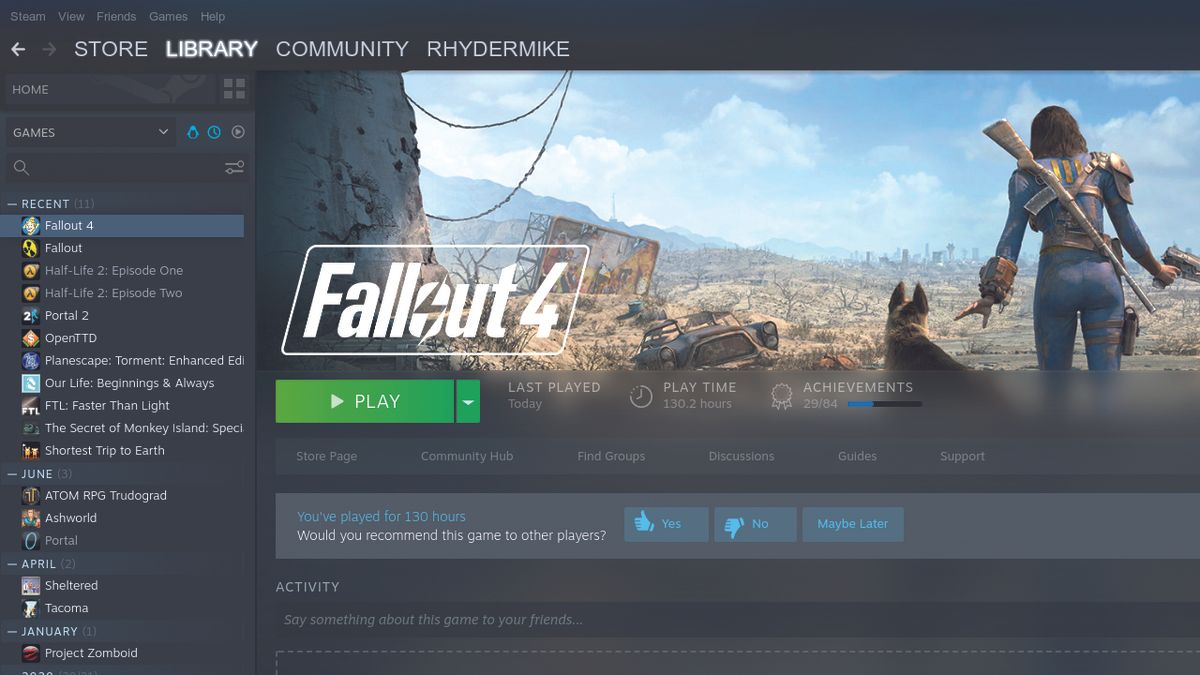
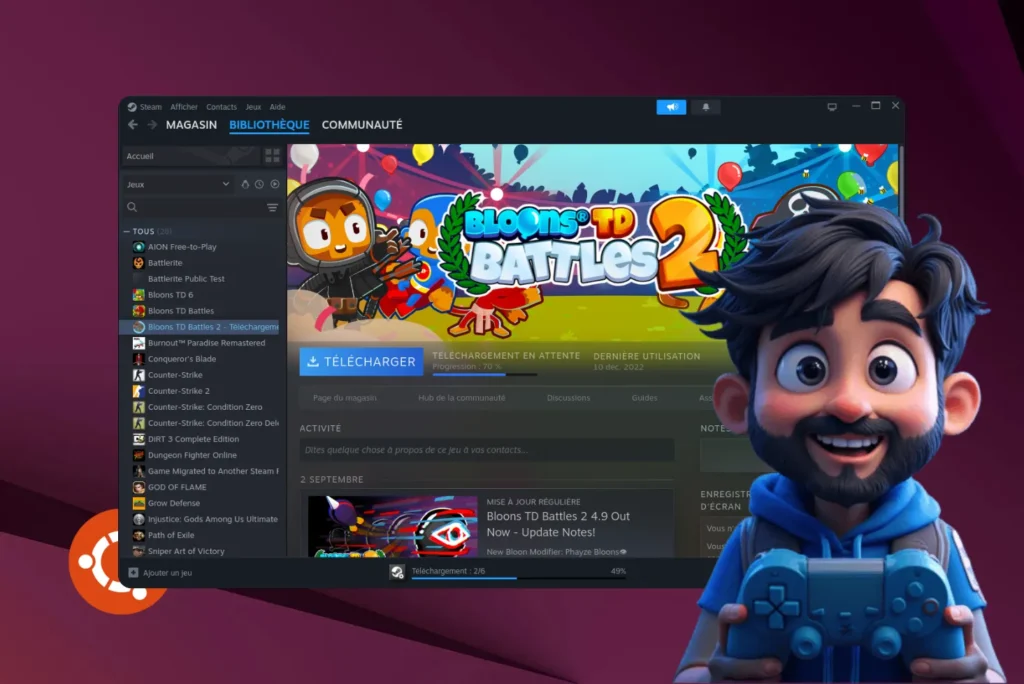
Top 10 Most Anticipated Games Of 2026 What To Watch Out For GAMES IN 2026 . Valve Unveils New Steam Machine Controller And Steam Frame For 2026 Image 2025 11. Better Linux Gaming With Steam And Proton Tom S Hardware 1200 80 . Linux Gaming In 2025 The Ultimate Guide Steam Linux.webp. C Mo Puedo Jugar A Juegos De Epic Games Y Steam En Linux Como Puedo Jugar A Juegos De Epic Games Y Steam En Linux
CloudDeck Cloud Gaming Play Steam Games On Any Device Linux Gaming 2026 . H Ng D N C I T Steam Tr N Linux T Y U C U H Th Ng N X L L I Install Steam Linux Debian 3 . Blog Running Steam On Arch Linux.webp. 11 Reasons Why You Should Switch To Linux Steam Store . The 6 Best Websites To Download Linux Games Steam Linux Games


TOP 21 NEW Upcoming Games Of 2026 YouTube . How To Play Games On Arch Linux Using Steam A Complete Guide Steam Arch07 . Steam Machine Guide 2026 Specs Performance 287 Steam Machine Guide Specs Performance . My Current Steam Wishlist 2025 2026 New Games YouTube . How To Install And Use Steam On Ubuntu Linux Steam Game Filtered
How To Install Steam On Ubuntu 20 04 LTS To Play Free And Paid Games Steam Linux Games To Play Min . 11 Best Linux For Gaming In 2026 RankRed Steam Os . Steam Community Steam For Linux. The Epic Games Store Is About To Get Two Huge New Features Windows . Steam Controller 2026 Release Specs Features And S4G Steam Controller 2026 1


Gaming In Linux 5 Best For Linux Gaming TechLatest SteamOS . How To Install Proton Steam Play On Linux And Actually Use It Properly Steam111 . Top Distros Linux 2026 Pour Le Gaming Guide Ultime Top Distros Linux Gaming 2026 300x169 . The 25 Best Games For Linux And Steam Machines Tech2Geek The 25 Best Games For Linux And Steam. Valve Gives Steam Its Biggest Update And Redesign In Years Ars Technica Steam 2023 Library